How to Use UPDF: A Beginner’s Step-by-Step Guide
Master UPDF with ease using this beginner-friendly step-by-step guide to edit, annotate, convert, and manage PDF files like a pro.
By TechScaleMedia Editorial · Updated July 2026 · 11 min read
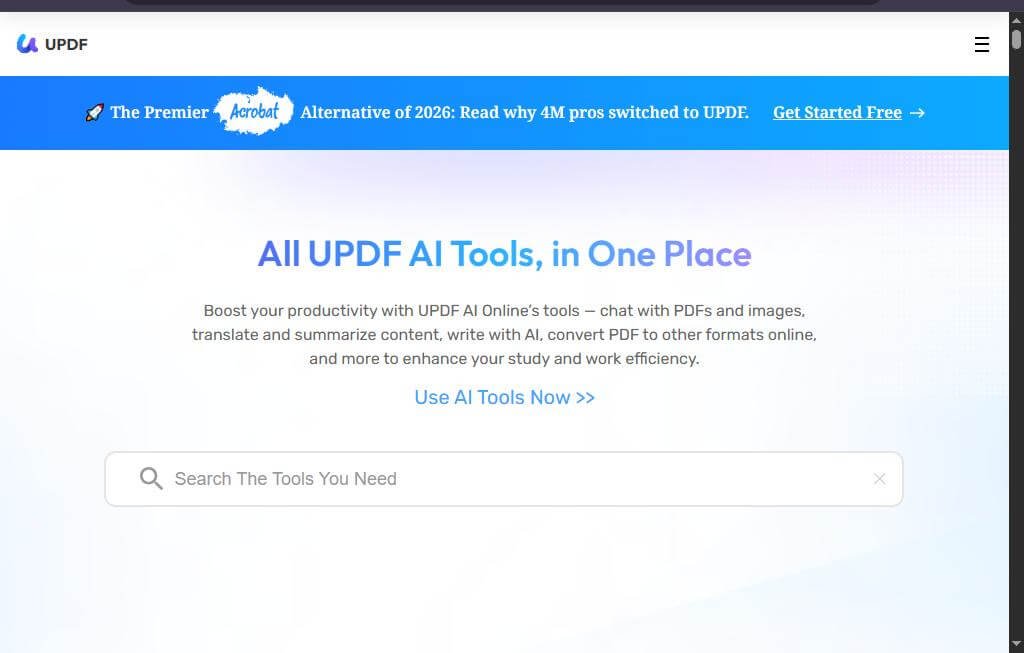
Managing PDF documents doesn’t have to be complicated. Whether you need to edit text, annotate files, convert PDFs, or organize pages, UPDF provides an all-in-one solution with an intuitive interface. It’s ideal for students, professionals, educators, and businesses looking for a faster alternative to traditional PDF editors.
In this guide, you’ll learn how to use UPDF step by step—even if you’ve never used a PDF editor before. New to UPDF? Follow this beginner-friendly guide to start editing, converting, and managing PDFs like a pro in just a few minutes.
How do you use UPDF?
Quick Answer
To use UPDF:
- Download and install UPDF.
- Open your PDF document.
- Edit text or images.
- Add comments or annotations.
- Convert or organize your PDF.
- Save or share your document.
Prerequisites
Before you begin, make sure you have:
- A UPDF account (optional for basic features)
- UPDF installed on your Windows, Mac, iOS, or Android device
- A PDF file to edit
- Stable internet connection (for cloud or AI features)
Step-by-Step Instructions
Follow these simple, beginner-friendly steps to learn how to use UPDF’s essential features for viewing, editing, annotating, and managing PDF documents efficiently.
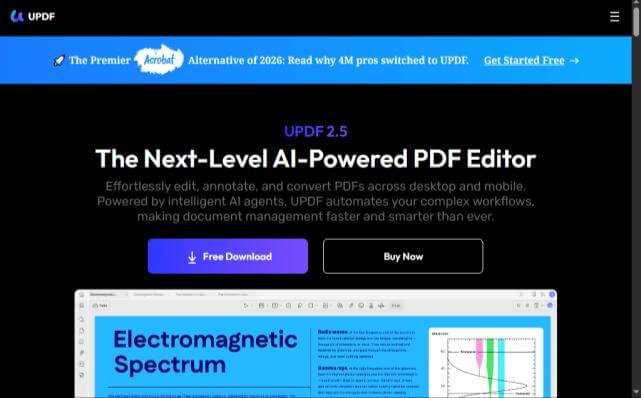
Step 1: Download and Install UPDF
- Visit the official UPDF website.
- Download the version for your operating system.
- Install the application.
- Launch UPDF.
Step 2: Open a PDF File
- Click Open File.
- Browse your computer.
- Select the PDF you want to edit.
- The document will open in the editor.
Step 3: Edit Your PDF
- Click Edit PDF from the toolbar.
- Modify text directly.
- Replace or resize images.
- Add new text boxes if needed.
- Save your changes.
Step 4: Annotate the Document
Use the annotation tools to:
- Highlight important text
- Underline content
- Add sticky notes
- Draw shapes
- Insert comments
- Add signatures
These tools are especially useful for reviewing documents.
Step 5: Convert or Organize PDFs
Click Export PDF to convert your document into formats such as:
- Word
- Excel
- PowerPoint
- Image
- Text
To organize pages:
- Rotate pages
- Delete pages
- Rearrange pages
- Insert new pages
- Merge PDFs
Step 6: Save and Share Your File
After editing:
- Click Save.
- Export your PDF if needed.
- Share it via email or cloud storage.
- Keep a backup copy for future edits.
How can you edit PDFs more efficiently in UPDF?
Tips
Learn simple yet effective UPDF editing tips to speed up your PDF workflow, improve accuracy, and save time on everyday document tasks.
- Use keyboard shortcuts to speed up editing.
- Save your work frequently.
- Use annotations instead of permanently changing important documents.
- Organize pages before exporting.
- Use OCR for scanned PDFs when available.
What mistakes should you avoid when using UPDF?
Common Mistakes
- Editing the wrong version of a document.
- Forgetting to save changes.
- Exporting to the wrong file format.
- Accidentally deleting pages.
- Ignoring document permissions before editing.
Why isn’t UPDF working properly?
Troubleshooting
Try these solutions:
- Restart the application.
- Update UPDF to the latest version.
- Check that the PDF isn’t password-protected.
- Ensure you have sufficient storage space.
- Reopen the document if edits aren’t displaying correctly.
How can you get the most out of UPDF?
Best Practices
Follow these best practices to maximize UPDF’s features, streamline your PDF workflow, and work more efficiently every day.
- Keep the software updated.
- Organize files into folders.
- Use annotations for document reviews.
- Back up important PDFs before making major edits.
- Export documents in the format best suited to your needs.
Frequently Asked Questions
Is UPDF free?
Yes. UPDF offers a free version with basic features, while advanced tools require a premium plan.
Can I edit text in a PDF using UPDF?
Yes. You can directly edit existing text, images, and other elements.
Does UPDF convert PDFs to Word?
Yes. UPDF supports conversion to Word, Excel, PowerPoint, images, and several other formats.
Can I annotate PDF documents?
Yes. You can highlight text, add comments, draw shapes, and insert sticky notes.
Is UPDF available on mobile devices?
Yes. UPDF is available for Windows, macOS, iOS, and Android.
Conclusion
UPDF makes editing, annotating, converting, and organizing PDF documents simple for users of all skill levels. By following this guide, you can quickly start working with PDFs more efficiently and improve your document workflow.
Ready to Get Started with UPDF?
Ready to simplify your PDF workflow? Try UPDF today to edit, convert, annotate, and organize your PDF documents with ease. Whether you’re a student, professional, or business user, UPDF helps you work smarter with every document.