

How to Use Text Blaze: A Beginner's Step-by-Step Guide
Typing the same emails, responses, meeting notes, and customer messages repeatedly can take up valuable time during your workday. Instead of rewriting the same content over and over, you can use text expansion software to insert complete messages with just a few keystrokes.
Text Blaze is a powerful text expansion tool that helps you create reusable text snippets, dynamic templates, and automated forms. It works across many websites and web applications, allowing you to save time, reduce typing errors, and maintain consistent communication.
Whether you’re a customer support agent, salesperson, healthcare professional, recruiter, educator, or freelancer, Text Blaze can help you become more productive.
In this guide, you’ll learn how to install Text Blaze and create your first text snippet. Ready to speed up your typing and automate repetitive text?
How do you use Text Blaze?
A Quick Answer
To use Text Blaze:
- 1. Install the Text Blaze browser extension.
- 2. Create a Text Blaze account.
- 3. Create a new text snippet.
- 4. Assign a shortcut keyword.
- 5. Use the shortcut while typing.
- 6. Add dynamic fields if needed.
- 7. Test and organize your snippets.
Once configured, Text Blaze automatically expands your shortcuts into complete messages and templates.
Prerequisites
Before getting started, you’ll need:
- A Text Blaze account
- Google Chrome, Microsoft Edge, or another supported Chromium-based browser
- A stable internet connection
- Frequently used text you want to automate
- Permission to install browser extensions
What You'll Need Before Using Text Blaze
Before creating your first Text Blaze snippet, make sure you have:
- Save time with smart text snippets
- Help teams write faster and consistently
- Simplify repetitive typing across apps
- Securely automate forms and text entry
- Perfect for support, sales, HR, and marketers
Create a Workflow Manually (Recommended for Beginners)
If you’re new to text automation, creating your first snippet is the best way to understand how Text Blaze works and boost productivity.
Install the Text Blaze Extension
Visit the Chrome Web Store.
Search for Text Blaze.
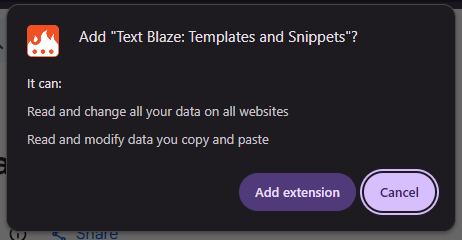
Click Add to Chrome.
After installation:
- Open the Extensions
- Pin Text Blaze for quick access.
Open the extension.
Click Sign Up.
Create your account using:
- Google account
- Email address
Complete the registration process.
Open the Text Blaze dashboard.
Click New Snippet.
Enter the text you want to reuse.
Examples:
- Customer support responses
- Sales emails
- Appointment confirmations
- Meeting summaries
- Email signatures
- Frequently used messages
Choose a shortcut that will trigger your snippet.
Examples:
/hello
/support
/meeting
When you type the shortcut, Text Blaze replaces it with your saved text automatically.
Text Blaze allows you to personalize snippets using dynamic fields.
Examples include:
- Customer Name
- Company Name
- Date
- Phone Number
- Meeting Time
Example:
Hello {Customer Name},
Thank you for contacting our support team.
Each time the snippet runs, you’ll be prompted to enter the variable information.
As your snippet library grows:
- Create folders
- Rename snippets
- Add labels
- Group snippets by project or department
Good organization makes snippets easier to find.
Open Gmail, LinkedIn, Slack, Notion, Zendesk, or another supported website.
Type your shortcut.
Example:
/support
Press the activation key (such as Space or Enter, depending on your settings).
Text Blaze automatically inserts your saved content.
Test Your Snippets
Verify that:
- The shortcut works correctly.
- Dynamic fields appear as expected.
- Formatting is preserved.
- Variables are inserted accurately.
Edit the snippet if improvements are needed.
What are the best tips for using Text Blaze effectively?
These expert Text Blaze tips will help you create faster, smarter, and more efficient text automations:
- Choose short, memorable shortcuts.
- Use folders to organize snippets.
- Personalize templates with dynamic fields.
- Keep templates updated.
- Test snippets before using them professionally.
- Pin the extension for faster access.
What are the most common mistakes to avoid when using Text Blaze?
Although Text Blaze is beginner-friendly, small configuration mistakes can prevent your text automations from working correctly. Avoid these common errors to create reliable snippets from the start.
Using the same shortcut for multiple snippets can create conflicts and trigger the wrong text expansion.
Unsaved snippets will not be available for use, resulting in lost work and reduced productivity.
Common shortcut names may expand unexpectedly while typing, interrupting your workflow.
Incorrect formatting can make expanded text appear unprofessional or difficult to read.
Keeping old information in templates can lead to inaccurate content and communication errors.
Overly long snippets are harder to maintain, edit, and reuse efficiently.
How do you troubleshoot common Text Blaze issues?
If your Text Blaze snippets or automations aren’t working as expected, these quick troubleshooting tips can help.
Check whether:
- The extension is enabled.
- You're signed in.
- The shortcut is typed correctly.
Try:
- Rich text formatting
- Line spacing
- Special characters
- Website compatibility
Verify:
- Fields were configured correctly.
- The snippet was saved.
- Variables are supported in the selected template.
Review:
- Refreshing the webpage.
- Restarting your browser.
- Updating the extension.
- Signing out and back in.
What are the best practices for using Text Blaze?
Once your workflows are running successfully, following these long-term practices will help keep your automations organized, scalable, and easy to maintain.
Use descriptive snippet names.
Personalize messages with variables.
Keep sensitive information secure.
Share standardized snippets with your team when appropriate.
Organize snippets into folders.
Review snippets regularly.
Delete outdated templates.
Frequently Asked Questions
1. Is Text Blaze free?
Yes. Text Blaze offers a free plan with core text expansion features, while premium plans include advanced automation, forms, and collaboration tools.
2. Does Text Blaze require coding?
No. Text Blaze is designed for users of all skill levels and requires no programming knowledge.
3. Which browsers support Text Blaze?
Text Blaze works with Google Chrome, Microsoft Edge, and other Chromium-based browsers.
4. Can I use Text Blaze in Gmail?
Yes. Text Blaze works with Gmail and many other web applications, allowing you to insert text snippets quickly while composing emails.
5. Can teams use Text Blaze?
Yes. Teams can share snippet libraries to maintain consistent communication across departments.
6. Is Text Blaze good for customer support?
Absolutely. Customer support teams often use Text Blaze to respond faster with standardized, personalized replies while reducing repetitive typing.
Conclusion
Text Blaze is a powerful productivity tool that helps you automate repetitive typing through reusable text snippets, dynamic fields, and customizable templates. Whether you’re sending emails, responding to customer inquiries, or completing forms, Text Blaze helps you work more efficiently while maintaining consistency. Start with a few basic snippets, then expand your library as your workflow grows.