

How to Use Magical: A Beginner's Step-by-Step Guide
How do you use Magical?
A Quick Answer
To use Magical:
- 1. Install the Magical browser extension.
- 2. Create a free account.
- 3. Save a text template or shortcut.
- 4. Assign a shortcut keyword.
- 5. Use the shortcut while typing.
- 6. Test the automation.
- 7. Organize templates for future use.
Once configured, Magical automatically expands your shortcuts into full text and helps automate repetitive typing tasks.
Prerequisites
Before getting started, you’ll need:
- A Magical account
- Google Chrome, Microsoft Edge, or another supported Chromium-based browser
- A stable internet connection
- Frequently used text, messages, or templates you want to automate
- Permission to install browser extensions
What You'll Need Before Using Magical
Before using Magical for your first text automation, make sure you have:
- Save time with AI-powered text automation
- Help teams communicate more efficiently
- Simplify repetitive typing across websites
- Securely autofill forms and business data
- Perfect for sales, support, recruiters, and marketers
Create a Workflow Manually (Recommended for Beginners)
If you’re new to text automation, creating your first template is the best way to understand how Magical works and boost productivity.
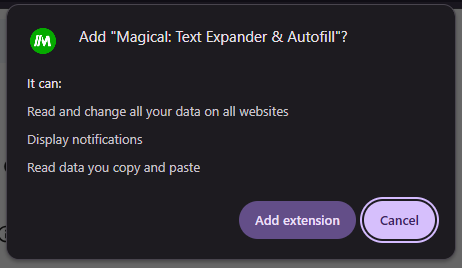
Install the Magical Extension
Visit the Chrome Web Store.
Search for Magical.
Click Add to Chrome.
After installation:
- Click the Extensions
- Pin Magical for quick access.
Open the extension.
Click Sign Up.
Register using:
- Google account
- Email address
Complete the setup process.
Click Create Shortcut or New Template.
Enter the text you frequently use.
Examples include:
- Customer support replies
- Email signatures
- Sales introductions
- Meeting invitations
- Frequently asked answers
Assign a shortcut such as:
/hello
or
/thanks
Save the template.
Open Gmail, LinkedIn, Slack, or another supported website.
Type your shortcut.
Example:
/thanks
Magical instantly expands it into your complete message.
This saves time and reduces repetitive typing.
Instead of writing the same names repeatedly, use variables.
Examples:
- First Name
- Company Name
- Job Title
- Date
- Meeting Time
Example template:
Hello {{First Name}},
Thank you for contacting our team…
Each time you use the shortcut, Magical prompts you to fill in the variable.
Magical can automatically move information from one website to another.
For example:
CRM →
Google Sheets
or
LinkedIn →
Applicant Tracking System
Instead of copying and pasting manually, Magical fills the information automatically.
As your collection grows:
- Create folders
- Rename templates
- Group shortcuts by department
- Delete outdated templates
A well-organized workspace makes templates easier to find.
Test Your Automation
Use your shortcut in different applications.
Verify:
- Text expands correctly.
- Variables work properly.
- Formatting is preserved.
- Information transfers accurately.
Update templates if needed.
What are the best tips for using Magical effectively?
These expert Magical tips will help you create faster, smarter, and more efficient text automations:
- Create short, memorable shortcut names.
- Use variables for personalized responses.
- Organize templates into folders.
- Keep frequently used replies updated.
- Test templates before daily use.
- Pin the extension for faster access.
What are the most common mistakes to avoid when using Magical?
Although Magical is beginner-friendly, small configuration mistakes can prevent your text automations from working correctly. Avoid these common errors to create reliable templates from the start.
Conflicting shortcut names can trigger unwanted text expansions during regular typing.
Unsaved templates cannot be accessed or used when needed.
Duplicate shortcuts can cause conflicts and unpredictable text expansions.
Testing templates helps ensure they expand correctly and produce the intended content.
Outdated template content can lead to inaccurate or irrelevant responses.
Complex templates are harder to manage, edit, and troubleshoot.
How do you troubleshoot common Magical issues?
If your Magical templates or automations aren’t working as expected, these quick troubleshooting tips can help.
Check whether:
- The extension is enabled.
- You're signed in.
- The shortcut is typed correctly.
Try:
- Refreshing the webpage.
- Restarting your browser.
- Updating the extension.
- Signing in again.
Verify:
- Variables were added correctly.
- The template was saved.
- Dynamic fields are properly configured.
Review:
- Website permissions
- Connected browser tabs
- Field selection
- Browser compatibility
What are the best practices for using Magical?
Once your Magical templates are working successfully, following these best practices will keep your text automations organized, efficient, and easy to maintain.
Use clear shortcut names.
Update frequently used responses regularly.
Test every template before sharing it with your team.
Remove outdated shortcuts periodically.
Keep templates concise.
Organize templates by project or department.
Protect sensitive information stored in templates.
Frequently Asked Questions
1. Is Magical free?
Yes. Magical offers a free plan with essential text expansion features, while paid plans include advanced automation and collaboration tools.
2. Does Magical require coding?
No. Magical is a no-code browser extension designed for users of all experience levels.
3. Which browsers support Magical?
Magical works with Google Chrome, Microsoft Edge, and other Chromium-based browsers.
4. Can Magical fill online forms?
Yes. Magical can automatically fill forms and transfer information between supported websites, reducing manual data entry.
5. Can teams use Magical?
Yes. Teams can create, organize, and share templates to maintain consistent communication across customer support, sales, recruiting, and other departments.
6. Is Magical useful for customer support?
Absolutely. Many support teams use Magical to quickly respond to common customer questions with personalized message templates.
Conclusion
Magical simplifies repetitive typing and data entry by allowing you to create reusable text templates, dynamic variables, and browser-based automations. Whether you’re responding to emails, filling out forms, or transferring information between applications, Magical helps you work faster and more accurately. Start by creating a few simple shortcuts, then expand your template library as your workflow grows.