

How to Use Pabbly Connect: A Beginner's Step-by-Step Guide
How do you use Pabbly Connect?
A Quick Answer
To use Pabbly Connect:
- 1. Create a Pabbly Connect account.
- 2. Create a new workflow.
- 3. Select a trigger application.
- 4. Connect your apps.
- 5. Add one or more action steps.
- 6. Map your data fields.
- 7. Test the workflow.
- 8. Turn on the automation.
Once activated, Pabbly Connect automatically performs your workflow whenever the trigger event occurs.
Prerequisites
Before you begin, make sure you have:
- A Pabbly Connect account
- A stable internet connection
- Accounts for the apps you want to automate
- API keys or login credentials (if required)
- A basic understanding of the workflow you want to build
What You'll Need Before Using Pabbly Connect
Before creating your first Pabbly Connect automation, make sure you have:
- Automate repetitive tasks and business workflows
- Connect 2,000+ apps without coding
- Build unlimited no-code automations
- Securely sync data across connected apps
- Ideal for marketers, agencies, and businesses
Create a Workflow Manually (Recommended for Beginners)
If you’re new to workflow automation, manually building your first workflow is the best way to understand how Pabbly Connect works.
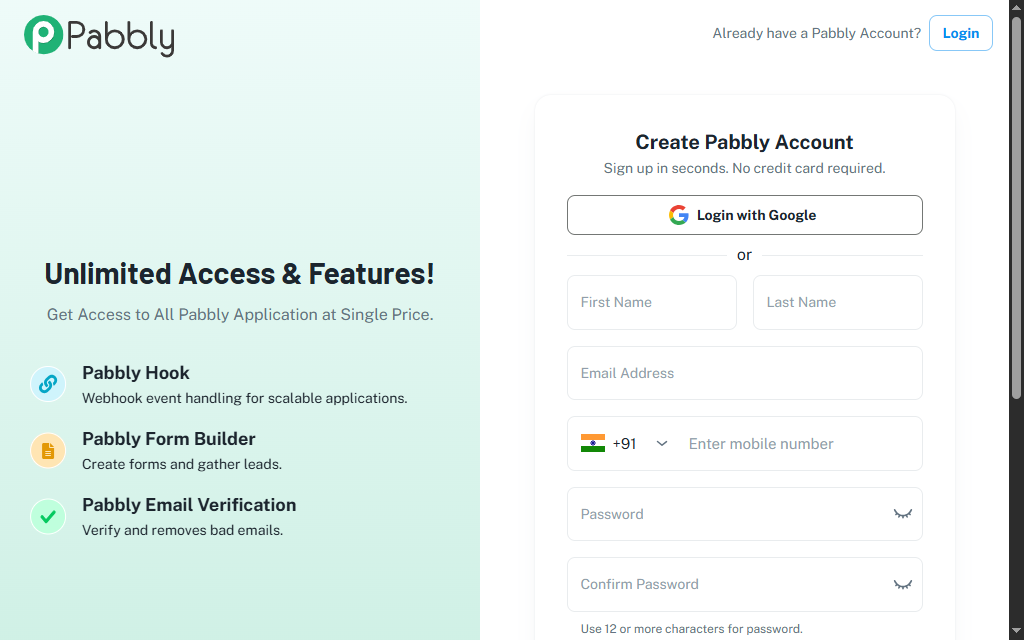
Create a Pabbly Connect Account
Visit the Pabbly Connect website.
Click Sign Up and create your account using your email address.
Verify your email if prompted.
After logging in, you’ll be taken to the Pabbly Connect dashboard.
Create a New Workflow
From the dashboard:
- Click Create Workflow.
- Enter a meaningful workflow name.
Examples:
- Lead Management
- Order Notification
- Customer Welcome Email
- CRM Automation
Click Create to continue.
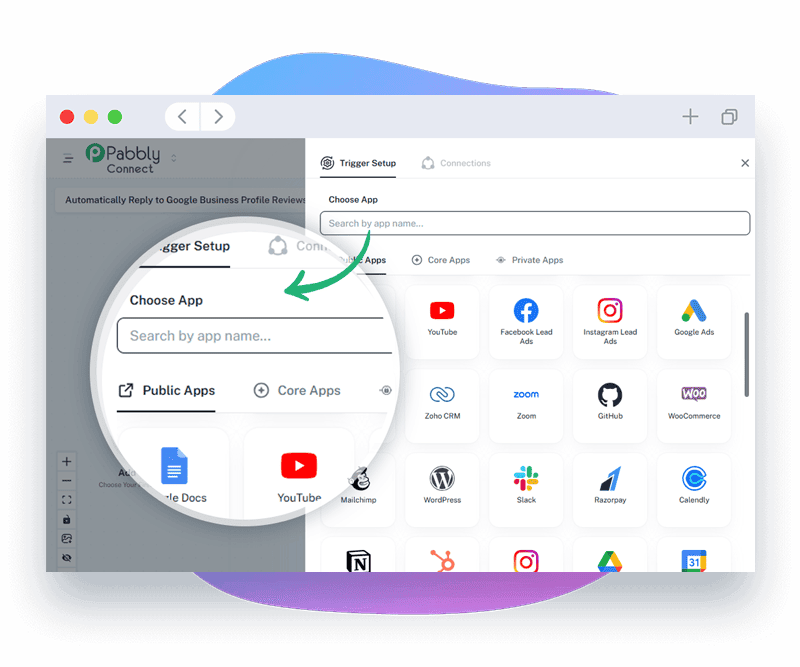
Every workflow starts with a trigger.
Choose the application where the automation should begin.
Popular trigger apps include:
- Google Forms
- WooCommerce
- Shopify
- Gmail
- Google Sheets
- Typeform
- Calendly
- Webhooks
Next, choose the trigger event.
Examples:
- New Form Submission
- New Order
- New Customer
- New Spreadsheet Row
- Incoming Webhook
Authorize Pabbly Connect to access your selected application.
Depending on the app, you may need to:
- Sign in
- Grant permissions
- Enter an API key
- Connect via OAuth
Once connected, click Save.
Click Capture Webhook Response or Test Trigger (depending on the selected app).
Perform the trigger action.
For example:
- Submit a Google Form
- Create a new Shopify order
- Add a row to Google Sheets
Pabbly Connect should capture the sample data.
Now choose what should happen after the trigger.
Examples:
- Send an email
- Create a CRM contact
- Send a Slack message
- Add a Google Sheets row
- Create a Notion page
- Update Airtable
- Send a WhatsApp notification (supported integrations)
You can add multiple action steps to create advanced workflows.
Select the destination app.
Authorize access by:
- Signing in
- Granting permissions
- Entering API credentials if required
Save the connection.
Match information from the trigger to the action.
Example:
Google Form → HubSpot
- Name → Contact Name
- Email → Email Address
- Company → Company Name
- Phone → Phone Number
Use dynamic fields to automatically transfer information between applications.
Test the Workflow
Click Save & Send Test Request or Test Action.
Verify that:
- Data is transferred correctly.
- Connected apps receive the expected information.
- Every workflow step completes successfully.
If necessary, make adjustments and test again.
Activate the Workflow
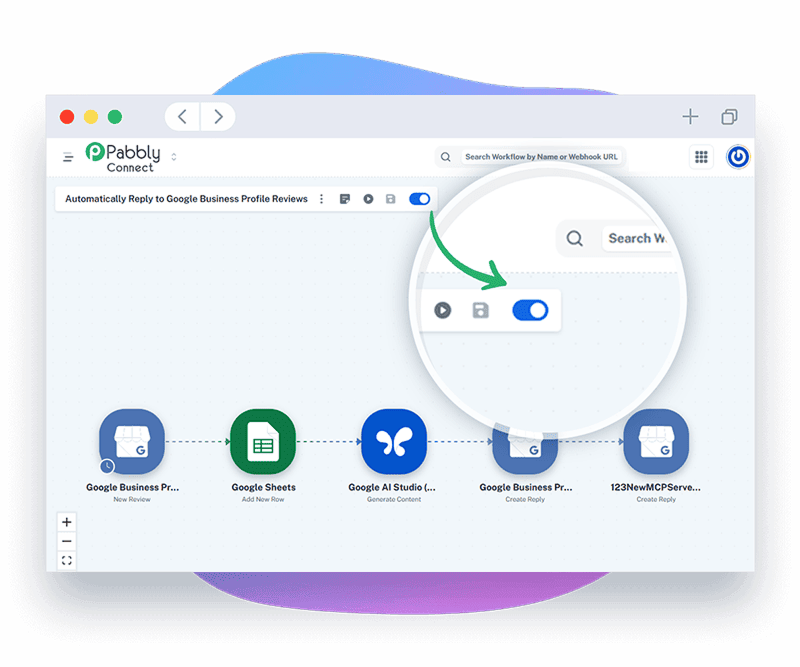
After successful testing:
- Save your workflow.
- Turn the workflow ON.
Pabbly Connect will now automatically execute your workflow whenever the trigger event occurs.
What are the best tips for using Pabbly Connect effectively?
These expert Pabbly Connect tips will help you build smarter, faster, and more reliable workflow automations:
- Start with simple two-app automations before creating complex workflows.
- Use clear workflow names to stay organized.
- Test each workflow before enabling it.
- Regularly review your task history.
- Keep app connections updated.
- Organize workflows by project or business function.
What are the most common mistakes to avoid when using Pabbly Connect?
Although Pabbly Connect is beginner-friendly, small configuration mistakes can prevent your automations from working correctly. Avoid these common errors to build reliable workflows from the start.
Workflows remain inactive until they are manually enabled.
An incorrect trigger event can prevent the workflow from running as intended.
Incorrect field mapping can transfer inaccurate or incomplete data between connected applications.
Testing the trigger ensures the workflow starts correctly before it goes live.
Expired API credentials can break app connections and stop workflow execution.
Adding unnecessary steps makes workflows more complex, slower, and harder to maintain.
How do you troubleshoot common Pabbly Connect issues?
If your Pabbly Connect automation isn’t working as expected, these quick troubleshooting tips can help.
Check whether:
- The workflow is turned on.
- The trigger event occurred.
- Connected applications remain authorized.
Try:
- Reconnecting the application.
- Refreshing expired credentials.
- Confirming API permissions.
Verify:
- The correct trigger event is selected.
- Sample data has been generated.
- Required permissions are granted.
Review:
- Field mapping
- Required fields
- Workflow logs
- Destination app settings
What are the best practices for using Pabbly Connect?
Once your Pabbly Connect workflows are running successfully, following these best practices will keep your automations organized, scalable, and easy to maintain.
Begin with simple automations.
Monitor execution history regularly.
Secure API keys and account credentials.
Review connected apps periodically for permission updates.
Use descriptive workflow names.
Test workflows after making changes.
Delete unused workflows to keep your workspace organized.
Frequently Asked Questions
1. Is Pabbly Connect beginner-friendly?
Yes. Pabbly Connect features a visual, no-code interface that makes it easy for beginners to automate workflows between applications.
2. Does Pabbly Connect require coding?
No. You can create workflows using a drag-and-drop interface without any programming knowledge.
3. Which apps can I connect?
Pabbly Connect integrates with hundreds of popular applications, including Google Workspace, Shopify, WooCommerce, HubSpot, Slack, Mailchimp, Airtable, Notion, Trello, Zoom, and many more.
4. Can I create multi-step workflows?
Yes. Pabbly Connect supports unlimited multi-step workflows (depending on your plan), allowing you to automate complex business processes.
5. Is Pabbly Connect suitable for businesses?
Yes. Businesses use Pabbly Connect for marketing automation, CRM management, customer support, eCommerce, finance, HR, and operations.
6. Can I transfer data automatically between apps?
Yes. Pabbly Connect automatically transfers data between connected applications whenever the trigger event occurs.
Conclusion
Pabbly Connect makes workflow automation simple by allowing users to connect multiple applications without writing code. Whether you’re automating customer management, marketing campaigns, online orders, or internal business processes, Pabbly Connect helps eliminate repetitive work and improve efficiency. Start with a basic workflow, test it carefully, and gradually build more advanced automations as your business grows.