How to Use FreshBooks: A Beginner’s Step-by-Step Guide
Learn how to use FreshBooks with this beginner-friendly step-by-step guide to create invoices, track expenses, manage clients, and simplify your business accounting.
By TechScaleMedia Editorial · Updated July 2026 · 11 min read
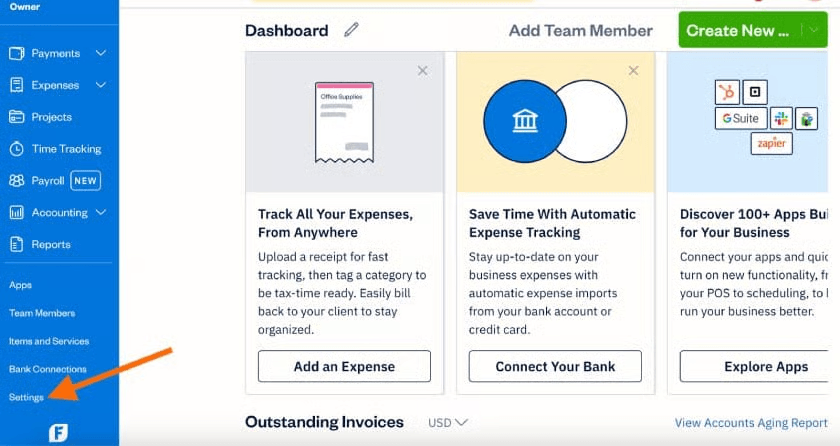
Sending invoices, tracking expenses, and managing bookkeeping manually can quickly become frustrating, especially when you’re running a small business or working as a freelancer. FreshBooks solves this by helping you create invoices, track expenses, log billable hours, accept online payments, and generate financial reports from one dashboard.
In this guide, you’ll learn how to use FreshBooks step by step so you can organize your finances and spend less time on accounting.
Ready to simplify your bookkeeping? Try FreshBooks today and manage your business finances more efficiently.
How do you use FreshBooks?
Quick Answer
To use FreshBooks:
- Create an account.
- Complete your business profile.
- Connect your bank account.
- Add your clients.
- Create and send invoices.
- Track expenses and billable hours.
- Accept online payments.
- Review financial reports.
Prerequisites
Before you start, you’ll need:
- A FreshBooks account
- Business details
- Client information
- Business bank account (optional)
- Internet connection
Step-by-Step Instructions
To use FreshBooks accounting software you must first set up your company profile, connect your bank account to automate transaction tracking, and use the central dashboard to manage invoicing, client communication, and expense logging
Step 1: Create Your Account
Sign up using your business email and verify your account.
Step 2: Set Up Your Business
Add your:
- Company name
- Logo
- Currency
- Tax settings
This information automatically appears on every invoice.
Step 3: Connect Your Bank
Link your business account to automatically import income and expenses instead of entering transactions manually.
Step 4: Add Clients
Create a client profile with their contact information and payment terms to make future invoicing faster.
Step 5: Create Your First Invoice
Click New Invoice, add products or services, apply taxes if needed, and send the invoice by email.
For recurring clients, enable Recurring Invoices to automate billing.
Step 6: Track Expenses
Upload receipts or import bank transactions.
Organize expenses into categories so they’re easier to review during tax season.
Step 7: Track Time
Start the timer while working on client projects.
When you’re finished, convert tracked hours directly into an invoice.
Step 8: Accept Payments
Enable online payments so clients can pay invoices using a credit card or supported payment method.
Step 9: Review Reports
Use the Reports page to monitor:
- Profit and Loss
- Expenses
- Revenue
- Outstanding invoices
These reports help you understand your business performance at a glance.
Tips
Regularly reconcile your accounts, categorize transactions correctly, and automate recurring invoices to keep your FreshBooks records accurate and save time.
- Send invoices immediately after completing work.
- Track expenses weekly.
- Use recurring invoices for monthly clients.
- Review reports every month.
- Enable payment reminders.
Common Mistakes
- Forgetting to categorize expenses.
- Mixing personal and business transactions.
- Ignoring overdue invoices.
- Not tracking billable hours.
Troubleshooting
If you run into issues while using FreshBooks, check your account settings, internet connection, or help resources to quickly resolve common problems.
Invoice not delivered?
Check the client’s email address and spam folder.
Bank isn’t syncing?
Reconnect your bank account.
Payment failed?
Verify your payment settings.
Can’t log in?
Reset your password using the recovery page.
Best Practices
- Keep client records updated.
- Reconcile your accounts regularly.
- Review unpaid invoices weekly.
- Store digital copies of receipts.
- Monitor cash flow every month.
Frequently Asked Questions
Is FreshBooks good for freelancers?
Yes. FreshBooks is built for freelancers, consultants, and small businesses.
Can FreshBooks automate invoices?
Yes. You can create recurring invoices and automatic payment reminders.
Does FreshBooks track expenses?
Yes. You can import bank transactions or upload receipts manually.
Can clients pay online?
Yes. FreshBooks supports secure online payments through supported payment methods.
Conclusion
FreshBooks helps you manage invoicing, bookkeeping, expense tracking, and financial reporting without the complexity of traditional accounting software. Once your account is set up, most daily accounting tasks take only a few minutes.
Ready to Use FreshBooks Like a Pro?
Start using FreshBooks today to automate invoicing, track expenses, accept online payments, and keep your business finances organized from one simple dashboard.