How to Use Descript: A Beginner’s Step-by-Step Guide
Learn how to use Descript to record, edit, transcribe, and publish audio and video content with this easy step-by-step guide for beginners.
By TechScaleMedia Editorial · Updated July 2026 · 11 min read
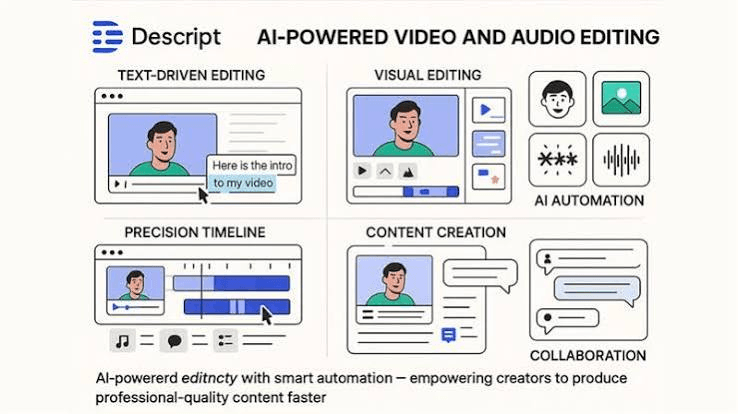
Editing videos and podcasts can be time-consuming, especially if you’re constantly trimming mistakes, removing filler words, or improving audio quality with traditional editing software. Descript simplifies the entire process by letting you edit audio and video just like editing a text document. With AI-powered transcription, voice enhancement, automatic captions, and screen recording, Descript helps creators produce professional content faster without needing advanced editing skills.
In this guide, you’ll learn how to use Descript step by step to edit videos, clean up audio, add captions, and publish high-quality content more efficiently.
Ready to edit videos and podcasts faster? Try Descript and create professional content with AI-powered editing tools.
How do you use Descript?
Quick Answer
Using Descript is simple:
- Create a Descript account.
- Upload your audio or video.
- Edit by modifying the transcript.
- Remove filler words.
- Improve audio with Studio Sound.
- Add captions and screen recordings.
- Export your project.
- Publish your content.
Prerequisites
Before getting started, you’ll need:
- A Descript account
- Audio or video file
- Microphone (optional)
- Internet connection
Step-by-Step Instructions
Follow a simple walkthrough to learn how to create, edit, and publish content using Descript’s powerful audio and video editing features.
Step 1: Create Your Descript Account
Sign up for Descript and choose a plan that fits your editing needs. After logging in, create a new project where all your recordings, transcripts, and edits will be stored.
Step 2: Upload Your Audio or Video
Import your podcast, interview, webinar, tutorial, or video into Descript.
The platform automatically transcribes your recording into editable text, allowing you to edit your content without using a traditional timeline.
Step 3: Edit by Modifying the Transcript
Instead of cutting clips manually, simply edit the transcript.
Delete unwanted words, sentences, or paragraphs, and Descript automatically removes the matching audio or video from your project.
This makes editing much faster, especially for long recordings.
Step 4: Remove Filler Words Automatically
Use the Remove Filler Words feature to eliminate unnecessary words like:
- Um
- Uh
- You know
- Like
You can also remove long pauses to create smoother, more professional recordings.
Step 5: Improve Audio with Studio Sound
Apply Studio Sound to enhance your recording.
This AI feature helps:
- Reduce background noise
- Improve voice clarity
- Balance audio levels
- Create studio-quality sound
It’s especially useful for podcasts, interviews, and videos recorded in less-than-perfect environments.
Step 6: Add Captions and Screen Recordings
Generate captions automatically to improve accessibility and viewer engagement.
If you’re creating tutorials or product demonstrations, use Descript’s built-in screen recorder to capture your screen and webcam in the same project.
Captions also make your content more engaging on platforms where videos are often watched without sound.
Step 7: Enhance Your Video with AI Tools
Descript includes additional AI features that help speed up production.
You can:
- Use Overdub to correct spoken mistakes without re-recording (with proper voice authorization).
- Apply Eye Contact to make it appear you’re looking directly at the camera.
- Add music, B-roll, images, and graphics using the multitrack editor.
These features help create polished, professional videos with minimal effort.
Step 8: Export and Publish Your Project
Once you’re satisfied with your edits, export your project in the format you need.
Common export options include:
- MP4
- MP3
- WAV
- Transcript files
You can also publish directly to YouTube or your preferred podcast hosting platform.
Tips
Learn time-saving shortcuts, organize your projects efficiently, and follow best practices to create professional-quality videos faster with Descript.
- Record in a quiet environment to improve transcription accuracy.
- Rename scenes and tracks to keep large projects organized.
- Use keyboard shortcuts to speed up editing.
- Create reusable project templates for recurring content.
- Preview captions before exporting to catch formatting issues.
Common Mistakes
- Uploading low-quality recordings, which reduces transcription accuracy.
- Editing the transcript without reviewing AI transcription errors first.
- Deleting large sections without checking the video flow afterward.
- Relying entirely on AI voice editing instead of recording clear audio.
- Exporting videos without checking the final resolution or aspect ratio.
Troubleshooting
Transcript contains errors
Review and manually correct the transcript before making edits to ensure accurate audio and video changes.
Audio quality is poor
Apply Studio Sound and reduce background noise before exporting your project.
Captions aren’t syncing correctly
Regenerate the captions or adjust the timing manually for better accuracy.
Export is taking too long
Reduce the export resolution if needed and ensure you have a stable internet connection.
Video playback is lagging
Close unnecessary applications or split large projects into smaller sections for smoother editing.
Best Practices
- Organize projects into folders before starting large editing jobs.
- Review every AI-generated transcript before publishing.
- Maintain consistent audio levels across all videos and podcasts.
- Use captions on every video to improve accessibility and engagement.
- Export a draft version for review before creating the final production file.
Frequently Asked Questions
Is Descript good for beginners?
Yes. Descript’s text-based editing interface makes it one of the easiest video and podcast editing tools for beginners.
Can Descript edit videos by editing text?
Yes. Descript automatically transcribes your recording, allowing you to edit the video or audio by simply modifying the transcript.
Does Descript remove filler words automatically?
Yes. It can automatically detect and remove filler words and long pauses with just a few clicks.
Can I create captions with Descript?
Yes. Descript automatically generates captions and subtitles that you can edit before exporting.
Is Descript suitable for podcast editing?
Absolutely. Descript is widely used for podcast editing thanks to its AI transcription, Studio Sound, multitrack editing, and voice enhancement features.
Conclusion
Descript transforms the way creators edit audio and video by replacing complex editing timelines with a simple text-based workflow. From AI transcription and automatic filler word removal to Studio Sound and caption generation, it provides everything you need to produce professional-quality content faster. By following the steps in this guide, you can simplify your editing process, improve production quality, and spend more time creating content instead of editing it.
Ready to Edit Like a Pro? Try Descript Now
Start using Descript today to edit videos and podcasts faster, improve audio quality with AI, generate accurate captions, and create professional content with an easier, text-based editing workflow.