

How to Use Bardeen AI: A Beginner's Step-by-Step Guide
Many daily tasks—such as copying data between websites, filling out forms, collecting leads, or sending follow-up emails—can be repetitive and time-consuming. Instead of doing these tasks manually, you can automate them with AI.
Bardeen AI is an AI-powered browser automation tool that helps users automate repetitive tasks directly in their web browser. It can scrape website data, connect with popular apps, generate AI-powered content, and automate workflows without requiring coding skills.
Whether you’re in sales, marketing, recruiting, customer support, or productivity management, Bardeen AI can help you work faster and more efficiently.
In this guide, you’ll learn how to set up Bardeen AI and create your first automation. Ready to automate repetitive tasks and boost your productivity?
How do you use Bardeen AI?
A Quick Answer
To use Bardeen AI:
- 1. Install the Bardeen AI browser extension.
- 2. Sign in to your account.
- 3. Choose or create an automation (called a Playbook).
- 4. Connect your apps.
- 5. Configure workflow actions.
- 6. Test the automation.
- 7. Run it manually or schedule it to run automatically.
Once activated, Relay.app automatically performs the workflow whenever the selected trigger occurs.
Prerequisites
Before getting started, make sure you have:
- An Activepieces account
- Internet connection
- Accounts for the apps you want to connect (Google Sheets, Gmail, Slack, etc.)
- API keys or login credentials (if required)
- A basic understanding of the workflow you want to automate
What You'll Need Before Using Bardeen AI
Before creating your first Bardeen AI automation, make sure you have:
- Automate repetitive tasks and save time
- Streamline team workflows with AI
- Automate browser-based tasks effortlessly
- Securely sync and manage business data
- Ideal for sales, marketers, and operations teams
Create a Workflow Manually (Recommended for Beginners)
If you’re new to automation, manually building your first workflow is the best way to understand how Bardeen AI works and automate tasks more efficiently.
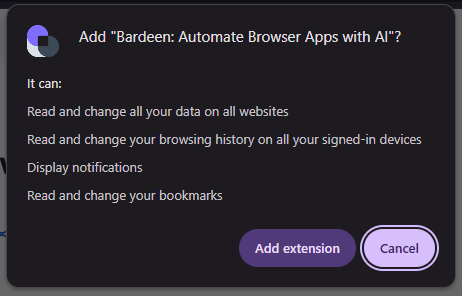
Install the Bardeen AI Extension
- Visit the Chrome Web Store and install the Bardeen AI
- Once installed:
- Click the Extensions icon in Chrome.
- Pin Bardeen AI for easy access.
- Open the extension.
Click Sign Up.
Register using:
- Google account
- Email address
Verify your email if required.
After signing in, you’ll see the Bardeen dashboard.
Bardeen AI automations are called Playbooks.
Browse ready-made Playbooks for tasks such as:
- Scraping LinkedIn profiles
- Copying website data to Google Sheets
- Sending Slack notifications
- Creating Notion pages
- Saving leads to CRMs
- AI-powered content generation
Choose a Playbook or create one from scratch.
Click Create Playbook.
Select:
- Trigger
- Actions
- Connected applications
Examples of triggers:
- Manual click
- Scheduled time
- Browser event
- Website inter
Authorize the applications you want to automate.
Popular integrations include:
- Google Sheets
- Gmail
- Slack
- Notion
- HubSpot
- Airtable
- Trello
- OpenAI
Grant the required permissions.
Now define what happens after the trigger.
Example workflow:
Trigger: Visit a LinkedIn profile
Actions:
- Extract profile information
- Save details to Google Sheets
- Send a Slack notification
- Generate an AI summary
Map the data fields between each step.
Click Run Test.
Verify that:
- The trigger works.
- Data is captured correctly.
- Connected apps receive the information.
- AI actions produce the expected results.
Fix any issues before using the automation regularly.
Once testing is complete, you can:
- Run the Playbook manually
- Schedule it to run automatically
- Launch it with browser shortcuts (if supported)
Your automation is now ready to save you time.
What are the best tips for using Bardeen AI effectively?
These expert Bardeen AI tips will help you build smarter, faster, and more reliable automations:
- Start with Bardeen's pre-built Playbooks before creating custom ones.
- Use descriptive names for your automations.
- Test each Playbook thoroughly before daily use.
- Keep browser permissions up to date.
- Organize Playbooks by project or department.
- Review automation history regularly.
What are the most common mistakes to avoid when using Bardeen AI?
Although Bardeen AI is beginner-friendly, small configuration mistakes can prevent your automations from working correctly. Avoid these common errors to build reliable workflows from the start.
An unpinned extension can be harder to access, slowing down workflow creation and execution.
Missing permissions prevent the automation tool from accessing and interacting with connected applications.
Failing to test the workflow can leave errors undiscovered until it runs in a live environment.
Incorrectly mapped fields can result in inaccurate, missing, or misplaced data.
Website updates can break existing Playbooks, requiring them to be reviewed and updated.
Building complex workflows too early makes them harder to understand, maintain, and troubleshoot.
How do you troubleshoot common Bardeen AI issues?
If your Bardeen AI automation isn’t working as expected, these quick troubleshooting tips can help.
Check whether:
- The browser extension is enabled.
- You're signed in.
- Required permissions have been granted.
Try:
- Reconnecting the application.
- Refreshing expired credentials.
- Checking API permissions.
Verify:
- The website layout hasn't changed.
- Correct data fields are selected.
- Required page elements are available.
What are the best practices for using Bardeen AI?
Once your Bardeen AI workflows are running successfully, following these best practices will keep your automations organized, scalable, and easy to maintain.
Build simple automations before creating advanced workflows.
Test every automation after making changes.
Secure account credentials and API keys.
Remove unused Playbooks to stay organized.
Name Playbooks clearly.
Monitor workflow execution regularly.
Update browser extensions when new versions are available.
Frequently Asked Questions
1. Is Bardeen AI free?
Yes. Bardeen AI offers a free plan with basic automation features, while paid plans provide higher usage limits and advanced capabilities.
2. Does Bardeen AI require coding?
No. Bardeen AI is designed for no-code users and provides a visual automation experience.
3. Which browsers support Bardeen AI?
Bardeen AI primarily supports Google Chrome and other Chromium-based browsers.
4. What apps can I connect?
You can connect popular tools such as Google Workspace, Slack, Notion, HubSpot, Airtable, Trello, OpenAI, and many others.
5. Can Bardeen AI scrape website data?
Yes. One of Bardeen AI's core features is extracting information from websites and sending it to spreadsheets, CRMs, or other connected apps.
6. Is Bardeen AI suitable for businesses?
Yes. Businesses use Bardeen AI for lead generation, sales automation, recruiting, marketing, operations, customer support, and productivity improvement.
Conclusion
Bardeen AI makes browser automation simple by allowing users to automate repetitive web tasks without coding. From collecting leads and scraping website data to connecting business applications and using AI-powered workflows, it helps individuals and teams save valuable time. Begin with ready-made Playbooks, customize them to fit your needs, and gradually build more advanced automations as your experience grows.