How to Use a Laptop Screen Extender (Dual-Screen Laptop Attachment): A Complete Beginner’s Step-by-Step Guide
A Laptop Screen Extender, also known as a dual-screen laptop attachment, is a portable display that clips onto your laptop and adds one or two extra screens for multitasking. Unlike a separate portable monitor, it stays attached to your laptop, making it an excellent solution for professionals, students, remote workers, and travelers who need more screen space without carrying a full desktop setup.
By TechScaleMedia Editorial · Updated July 2026 · 11 min read
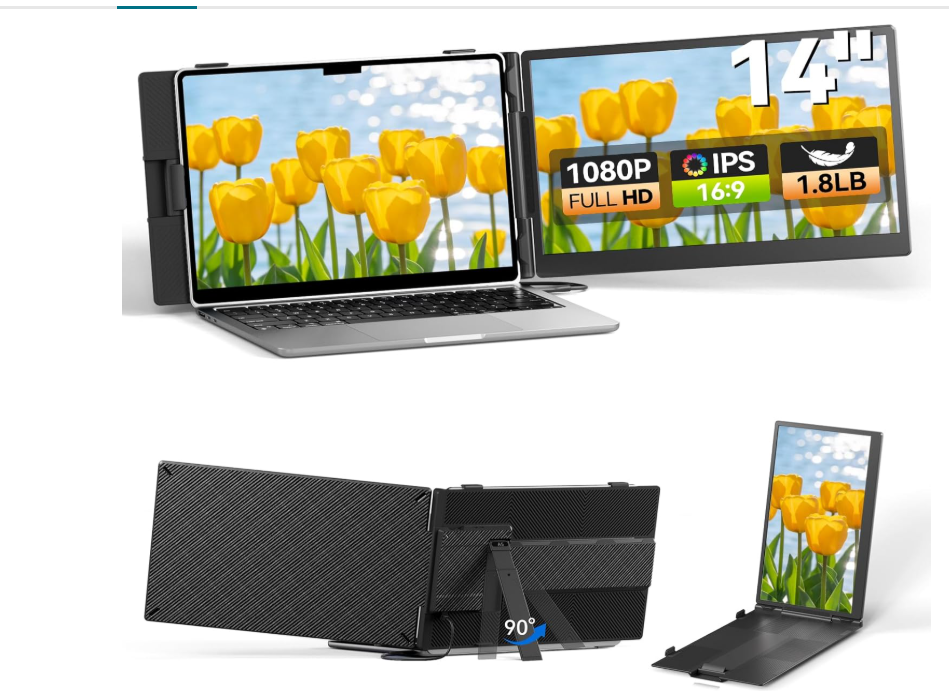
Whether you’re managing spreadsheets, attending virtual meetings, coding, editing content, or working while traveling, a portable second monitor for a laptop helps improve productivity and keeps multiple applications visible at once. With proper setup and configuration, you can enjoy a seamless portable multi-monitor setup almost anywhere.
This guide explains how to install a laptop screen extender, configure display settings, optimize screen alignment, troubleshoot common issues, and get the best performance from your dual- or triple-screen workspace.
How Do You Use a Laptop Screen Extender?
Quick Answer
- Attach the mounting bracket.
- Slide out the secondary screen(s).
- Connect using USB-C or HDMI.
- Install drivers if required.
- Configure display settings.
- Adjust the screen angle.
- Match brightness and color.
- Organize the cables.
- Fold the extender for travel.
Prerequisites
Before you begin, you’ll need:
- Laptop screen extender
- Compatible laptop
- USB-C or HDMI cable
- USB power cable (if required)
- Display drivers or companion software (for some models)
- Stable work surface
Create a Workflow Manually (Recommended for Beginners)
If you’re new to portable displays, using your first Laptop Screen Extender is the best way to understand how the technology actually works.
Step 1: Attach the Mounting Bracket
Secure the mounting bracket to the back of your laptop lid.
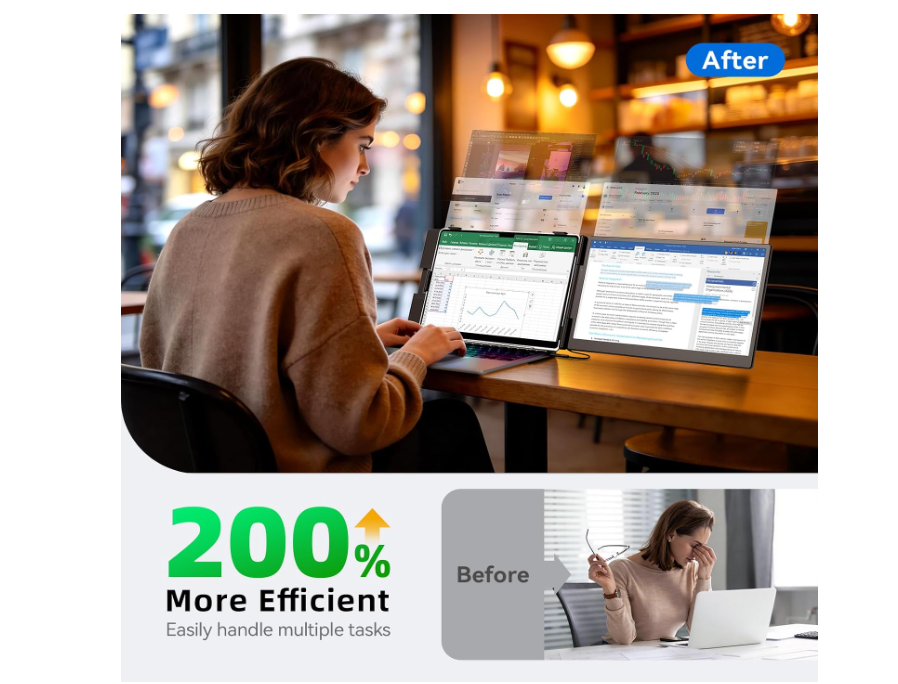
Ensure the bracket fits firmly without covering the webcam, cooling vents, or preventing the laptop from opening normally.
Step 2: Extend the Display Panels
Carefully slide out the secondary screen or screens until they lock into position.
Adjust the panels evenly to maintain balance and stability.
Step 3: Connect the Screen Extender
Connect the extender using the supplied USB-C or HDMI cable.
Many USB-C laptop screen expansion models transmit video and power through a single cable, while HDMI models may require an additional USB connection for power.
Step 4: Install Required Software
Some plug-and-play laptop displays work immediately, while others require driver installation.
Follow the manufacturer’s instructions if your operating system requests additional software.
Step 5: Configure Display Settings
Open your computer’s display settings.
Select Extend Display instead of Duplicate Display.
Arrange the monitors to match their physical positions for smooth cursor movement.
Step 6: Adjust the Viewing Angle
Tilt the extended screens until they align comfortably with your primary display.
Reducing glare and maintaining eye-level viewing improves comfort during long work sessions.
Step 7: Match Display Settings
Adjust each screen’s:
- Brightness
- Contrast
- Color temperature
- Scaling (if needed)
Matching display settings creates a more consistent viewing experience.
Step 8: Organize the Cables
Route cables neatly behind or beside the laptop.
Keeping cables secure reduces stress on the connectors and keeps your workspace organized.
Step 9: Fold the Extender After Use
When finished, disconnect the cables if necessary.
Slide the display panels back into place and remove the mounting bracket if recommended by the manufacturer before storing the device.
Ready to expand your workspace wherever you go?
Follow this step-by-step guide to set up your laptop screen extender correctly and enjoy a more productive multitasking experience.
How Can You Use a Laptop Screen Extender More Efficiently?
Tips
Organize Your Workflow
Place your primary task on the laptop screen and keep supporting apps like email, chat, or documents on the extended display for easier multitasking.
Adjust Text Scaling
Increase or decrease display scaling until text and icons are comfortable to read across all screens.
Use Keyboard Shortcuts
Learn shortcuts for moving windows between displays to work more efficiently.
Reduce Screen Reflections
Position the screens away from direct light sources to improve visibility and reduce eye fatigue.
Disconnect Safely
Before unplugging the extender, close active applications and disconnect the display properly to prevent display glitches.
How Can You Avoid Common Laptop Screen Extender Errors?
Common Mistakes
Choosing Duplicate Display Mode
Mirroring both screens limits your available workspace. Select Extend Display for true multitasking.
Skipping Required Drivers
Some models require software before the additional display functions correctly.
Extending the Panels Too Quickly
Opening or closing the sliding screens with excessive force can damage the rails or hinges.
Connecting Through an Unsupported Port
Not every USB-C port supports video output. Verify your laptop supports DisplayPort Alt Mode or Thunderbolt if using USB-C.
Ignoring Laptop Performance Limits
Running multiple high-resolution displays on older hardware may reduce overall system performance.
How Can You Get the Most Value from a Laptop Screen Extender?
Best Practices
Keep Your Operating System Updated
System updates improve compatibility with external displays and fix known display-related issues.
Clean the Display Panels Regularly
Use a microfiber cloth to remove fingerprints and dust for a clear viewing experience.
Store the Device in a Protective Case
Protect the screen extender from scratches and impacts when transporting it.
Inspect the Mounting Bracket Periodically
Check that the bracket remains secure and free from wear before attaching it to your laptop.
Use Quality Cables and Adapters
Certified cables and compatible adapters help maintain a stable video signal and reduce connection issues.
How Can You Troubleshoot Laptop Screen Extender Effectively?
Troubleshooting
Screen Extender Is Not Detected
Reconnect the cable.
Restart your laptop and check whether the required drivers are installed.
No Signal on the Secondary Screen
Verify that the correct input source is selected and all cable connections are secure.
Display Resolution Looks Incorrect
Open your display settings and choose the monitor’s recommended resolution.
Screen Flickers
Reconnect the cable and update your graphics drivers.
If available, test with another compatible cable.
Laptop Feels Unstable
Reposition the extender and confirm the mounting bracket is installed correctly before continuing.
Frequently Asked Questions
How does a laptop screen extender work?
It attaches to the back of your laptop and connects through USB-C or HDMI, adding one or more external displays that function as extended desktop space.
Is a laptop screen extender better than a portable monitor?
A screen extender stays attached to your laptop for maximum portability, while a portable monitor offers greater flexibility in positioning. The better choice depends on your workflow.
Can I create a triple-screen laptop setup?
Yes. Many models include two slide-out displays, allowing you to use your laptop screen alongside two additional monitors.
Why isn’t my laptop detecting the screen extender?
Check your cable connections, install any required drivers, and verify that your laptop supports external displays through the selected port.
Does a laptop screen extender require external power?
Some USB-C models draw power directly from the laptop, while others require an additional USB connection or power adapter.
Is a laptop screen extender good for travel?
Yes. Its compact design makes it a convenient productivity accessory for business trips, remote work, and mobile offices.
Conclusion
A Laptop Screen Extender is a practical solution for anyone who needs additional screen space without carrying multiple standalone monitors. By installing it correctly, configuring your display settings, and maintaining the hardware, you can create an efficient dual- or triple-screen workspace almost anywhere.
Whether you’re working remotely, traveling for business, studying, or managing multiple applications, a properly configured screen extender can significantly improve productivity and make multitasking more efficient.
Expand Your Workspace Anywhere
Set up your Laptop Screen Extender today and enjoy the convenience of a portable dual-screen or triple-screen workstation. Configure it correctly to boost productivity, simplify multitasking, and work more efficiently wherever your laptop takes you.