How to Use Apple Books: A Beginner’s Step-by-Step Guide
Learn how to use Apple Books to find, download, organize, and enjoy your favorite books and audiobooks with ease.
By TechScaleMedia Editorial · Updated July 2026 · 11 min read
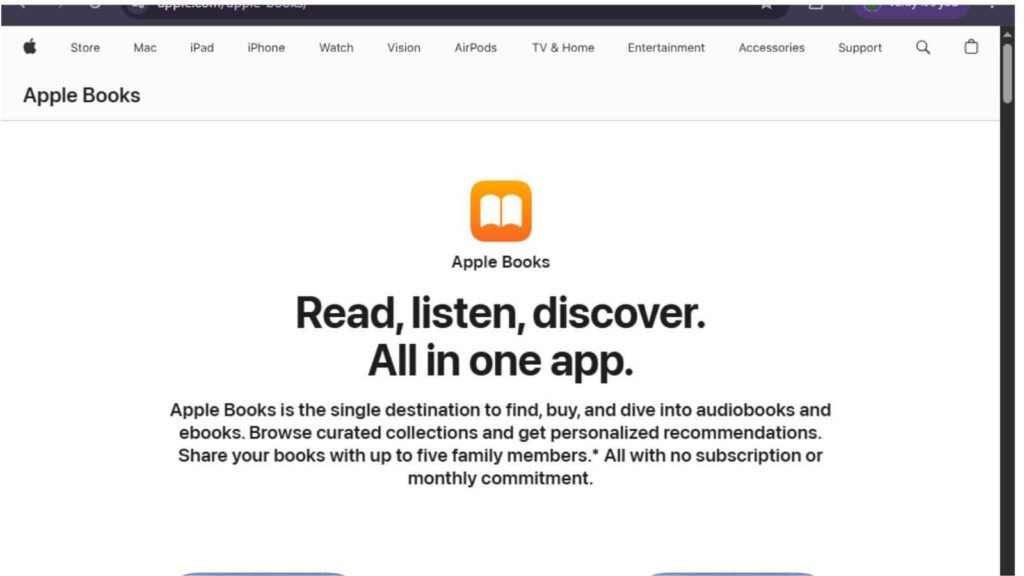
Apple Books is Apple’s official digital reading platform that allows users to purchase, download, organize, and read eBooks and audiobooks across Apple devices. Whether you’re reading on your iPhone, iPad, or Mac, Apple Books provides a seamless experience with personalized recommendations, syncing, and customizable reading features.
This step-by-step guide explains how to use Apple Books, from setting up your account to purchasing books, organizing your library, and enhancing your reading experience.
If you’re an Apple user looking for a convenient way to enjoy eBooks and audiobooks, Apple Books offers everything you need in one place.
How Do You Use Apple Books?
Quick Answer
To use Apple Books:
- Open the Apple Books app on your Apple device.
- Sign in with your Apple ID.
- Browse or search for books and audiobooks.
- Purchase or download free titles.
- Add books to your library.
- Customize your reading preferences.
- Sync your library across Apple devices.
- Track your reading progress.
Prerequisites
Before using Apple Books, make sure you have:
- An Apple ID
- An iPhone, iPad, or Mac
- A stable internet connection
- A valid payment method linked to your Apple ID
- The Apple Books app (pre-installed on most Apple devices)
Step-by-Step Instructions
Follow these simple steps to set up Apple Books, find books, download or purchase titles, and organize your reading library with ease.
Step 1: Open Apple Books
Locate and open the Apple Books app on your iPhone, iPad, or Mac.
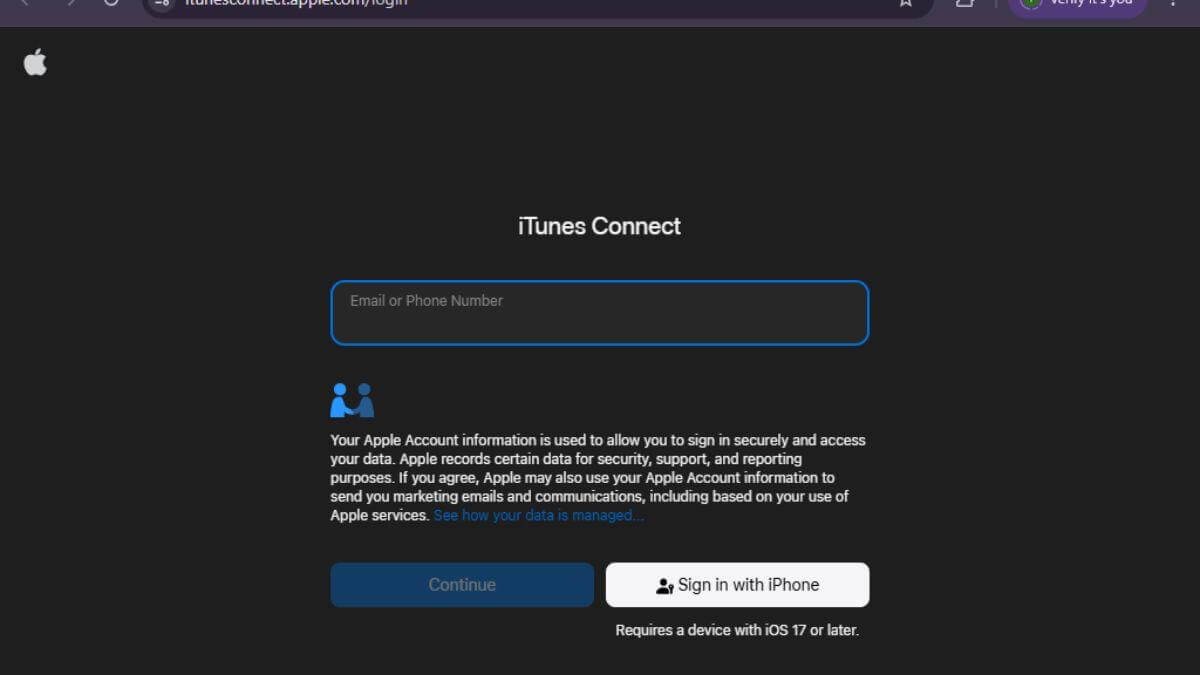
If prompted, sign in using your Apple ID.
Step 2: Browse the Book Store
Tap or click Book Store.
Browse books by:
- Genre
- Bestseller lists
- New releases
- Featured collections
- Author
You can also use the search bar to find specific books.
Step 3: Purchase or Download a Book
Select the book you want.
Click Buy for paid books or Get for free books.
Confirm your purchase using:
- Face ID
- Touch ID
- Apple ID password
The book will automatically be added to your library.
Step 4: Access Your Library
Open the Library tab.
You’ll find:
- Purchased books
- Downloaded books
- Audiobooks
- Samples
- Reading lists
Organize your books into collections if needed.
Step 5: Start Reading
Open any book from your library.
Customize your reading experience by adjusting:
- Font size
- Font style
- Background color
- Brightness
- Scrolling mode
- Page theme
Your reading progress is automatically saved.
Step 6: Sync Across Devices
Enable iCloud for Books in your Apple settings.
Your books, bookmarks, highlights, and reading progress will sync automatically across all Apple devices using the same Apple ID
Step 7: Listen to Audiobooks
Open the Audiobooks section.
Select your audiobook and use playback controls to:
- Play
- Pause
- Skip chapters
- Adjust playback speed
- Set a sleep timer
Continue listening from where you left off across your Apple devices.
What Tips Help You Get the Most Out of Apple Books?
Tips
Get more from Apple Books by organizing your library, customizing your reading settings, and using helpful features for a smoother reading experience.
- Download books before traveling.
- Organize books into custom collections.
- Use bookmarks and highlights while reading.
- Enable Dark Mode for nighttime reading.
- Sync your library regularly with iCloud.
- Explore free books and limited-time deals.
- Adjust fonts and themes for a more comfortable reading experience.
Wat Common Mistakes Should You Avoid?
Common Mistakes
Avoid these beginner mistakes:
- Using different Apple IDs across devices.
- Forgetting to enable iCloud syncing.
- Ignoring available book updates.
- Not downloading books before going offline.
- Accidentally deleting purchased books instead of removing downloads.
- Skipping sample previews before purchasing.
What Should You Do If Apple Books Isn’t Working?
Troubleshooting
If you experience problems:
| Issue | Solution |
| Can’t sign in | Verify your Apple ID credentials |
| Books won’t download | Check your internet connection and storage space |
| Library not syncing | Enable iCloud Books and restart your device |
| Purchase failed | Verify your payment method |
| App crashes | Update iOS or macOS and restart the app |
| Missing books | Restore purchases from your Apple account |
What Are the Best Practices for Using Apple Books?
Best Practices
- Keep your Apple devices updated.
- Sync your library using iCloud.
- Organize books into collections.
- Back up important highlights and notes.
- Explore personalized recommendations.
- Download books before traveling.
- Review your reading goals regularly.
Frequently Asked Questions
Is Apple Books free?
Yes. The Apple Books app is free to use. You only pay for books or audiobooks you choose to purchase, although many free titles are also available.
Can I use Apple Books offline?
Yes. Download your books before disconnecting from the internet.
Can I read Apple Books on multiple devices?
Yes. Your library syncs across compatible Apple devices using the same Apple ID.
Does Apple Books offer audiobooks?
Yes. Apple Books includes a large collection of audiobooks available for purchase.
Can I highlight and take notes in Apple Books?
Yes. You can highlight text, create notes, and bookmark pages while reading.
Conclusion
Apple Books makes it easy to build a digital library and enjoy books across your Apple devices. Whether you’re reading bestselling novels, listening to audiobooks, or organizing your personal collection, the platform provides a smooth and personalized reading experience. By syncing your library and customizing your reading settings, you can enjoy your favorite books wherever you go.
Discover Your Next Great Read with Apple Books
Browse thousands of eBooks and audiobooks, build your digital library, and enjoy a seamless reading experience across all your Apple devices. Open Apple Books today and start exploring your next favorite title.