How to Use Elgato Stream Deck+ / XL: A Complete Beginner’s Step-by-Step Guide
The Elgato Stream Deck+ and Stream Deck XL are customizable control consoles designed to simplify streaming, content creation, productivity, and smart home management. They allow users to trigger shortcuts, macros, applications, and automated workflows through programmable LCD keys.
By TechScaleMedia Editorial · Updated July 2026 · 11 min read
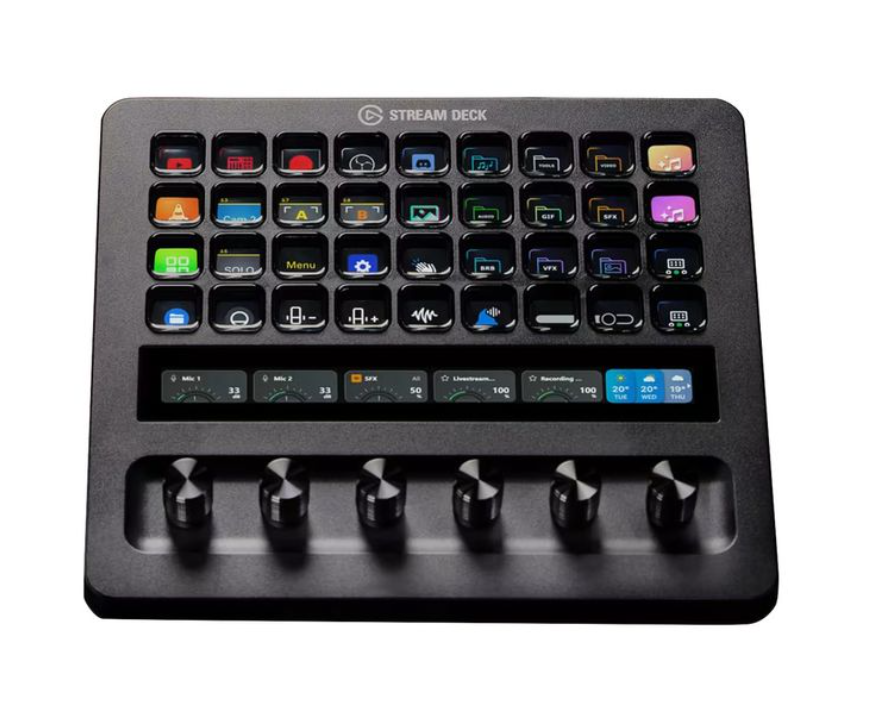
The Stream Deck+ is built for creators who need advanced control options, featuring 8 LCD macro keys, 4 multi-function rotary dials, and a touch strip for tasks like audio adjustment, scene switching, and timeline control. The Stream Deck XL is designed for larger and more complex setups, offering 36 LCD keys, 6 multi-function dials, an enlarged 161 × 14 mm touch strip, and expanded connectivity options through compatible network and USB hub modules.
Both models support plugins, custom profiles, and automation tools, making them useful for streamers, video editors, podcasters, designers, and professionals who want faster access to frequently used commands. With features like app-specific profiles, multi-action buttons, and customizable layouts, these devices can transform repetitive tasks into efficient one-touch workflows.
This guide explains how to set up Elgato Stream Deck, customize keys, install plugins, create automation workflows, use profiles, configure dials and touch controls, and optimize your setup for streaming and productivity.
How Do You Use Elgato Stream Deck+ / XL?
Quick Answer
- Connect the Stream Deck to your computer.
- Install Stream Deck software.
- Update firmware.
- Create a profile.
- Add actions to keys.
- Install useful plugins.
- Create multi-action buttons.
- Organize controls with folders.
- Customize icons and labels.
- Configure dials and touch strip (Stream Deck+).
Prerequisites
Before you begin, you’ll need:
- Elgato Stream Deck+ or Stream Deck XL
- USB cable
- Windows or macOS computer
- Stream Deck software
- Supported apps (OBS, Discord, Spotify, Zoom, etc.)
- Internet connection for plugins and updates
Create a Workflow Manually (Recommended for Beginners)
If you’re new to workflow controllers, using your first Elgato Stream Deck+ / XL is the best way to understand how the platform actually works.
Step 1: Connect the Stream Deck
Connect the device to your computer using the included USB cable.
Once connected, your system should automatically recognize the hardware.
Step 2: Install Stream Deck Software
Download and install the official Stream Deck software from Elgato.
The software allows you to:
- Assign actions
- Install plugins
- Create profiles
- Customize icons
- Manage device settings
The application automatically detects whether you are using the Stream Deck+ or XL model.
Step 3: Update Firmware
Check for available firmware updates after installation.
Updates can improve:
- Device stability
- Software compatibility
- Performance
Keeping firmware current ensures smoother operation.
Step 4: Create a Profile
Profiles allow you to create different button layouts for different tasks.
Examples:
- Streaming profile
- Video editing profile
- Productivity profile
- Smart home profile
You can switch layouts depending on the application you are using.
Step 5: Add Actions to Keys
Drag available actions from the software panel onto individual keys.
You can assign actions such as:
- Opening applications
- Launching websites
- Triggering keyboard shortcuts
- Controlling audio settings
- Switching scenes
Each key can become a personalized shortcut.
Step 6: Install Plugins
Install plugins for specific software and services.
Popular integrations include:
- OBS for streaming controls
- Twitch for live features
- Discord for communication
- Spotify for media control
- Zoom for meeting shortcuts
Plugins expand the capabilities of your Stream Deck.
Step 7: Create Multi-Action Buttons
Use the Multi Action feature to combine several commands into one button press.
Example workflow:
- Start streaming
- Turn on microphone
- Open chat window
- Change OBS scene
This helps automate repeated tasks.
Step 8: Organize Controls With Folders
Create folders to store additional shortcuts without overcrowding your main layout.
For example:
- Streaming tools
- Editing commands
- Social media shortcuts
- Smart home controls
Folders allow one key to access multiple functions.
Step 9: Customize Icons and Labels
Personalize your keys with:
- Custom images
- GIFs
- Text labels
- Icons
Clear visuals make important controls easier to find during fast workflows.
Step 10: Configure Dials and Touch Strip (Stream Deck+ Only)
The Stream Deck+ includes additional controls for analog adjustments.
You can assign dials for:
- Volume adjustment
- Audio mixing
- Zoom control
- Scrolling
- Scene transition timing
The touch strip can display:
- Sliders
- Controls
- Previews
- Additional shortcuts
Step 11: Enable Automatic Profile Switching
Set profiles to change automatically when specific apps open.
For example:
- OBS opens → Streaming profile loads
- Photoshop opens → Editing profile loads
- Zoom opens → Meeting controls appear
This creates a smoother workflow without manual switching.
Step 12: Test and Improve Your Layout
Use your Stream Deck during real tasks and identify frequently used actions.
Move important buttons closer and reorganize folders based on your workflow.
Ready to simplify your workflow?
Follow this step-by-step guide to configure your Stream Deck+ or XL and turn repetitive tasks into one-click actions.
How Can You Use a Elgato Stream Deck+ / XL More Efficiently?
Tips
Start With Essential Controls
Add your most-used actions first instead of filling every key immediately.
Keep Similar Functions Together
Group related commands into folders to make navigation faster.
Use Clear Visual Labels
Simple icons and names help you identify controls quickly during live sessions.
Create Separate Profiles
Different profiles for work, streaming, and personal tasks keep your setup organized.
Review Your Layout Regularly
Adjust button placement as your workflow changes.
How Can You Avoid Common Elgato Stream Deck+ / XL Errors?
Common Mistakes
Adding Too Many Actions at Once
A complicated setup can make controls harder to remember and slower to use.
Ignoring Folder Organization
Without folders, large layouts can become cluttered and difficult to navigate.
Installing Unnecessary Plugins
Too many unused plugins can make your setup harder to manage.
Blocking the Sensor Area
Some integrations require access permissions before they can control applications.
Switching Devices Without Proper Setup
A setup designed for another creator may not match your own workflow.
How Can You Get the Most Value from a Elgato Stream Deck+ / XL?
Best Practices
Keep Software Updated
Install Stream Deck software updates to maintain compatibility with new features and plugins.
Create Backup Profiles
Save your layouts so they can be restored after reinstalling software or changing computers.
Build Around Your Workflow
Customize controls based on your actual tasks instead of adding features you rarely use.
Keep Frequently Used Actions Accessible
Place important shortcuts on the main screen for faster access.
Maintain a Clean Layout
Remove unused actions regularly to keep your control panel efficient.
How Can You Troubleshoot Elgato Stream Deck+ / XL Effectively?
Troubleshooting
Stream Deck Is Not Detected
Reconnect the USB cable.
Restart the Stream Deck software and check for updates.
Buttons Are Not Triggering Actions
Verify that the assigned action is correct and the required application is running.
Plugins Are Not Working
Update the plugin and confirm the connected application supports the integration.
Profiles Are Not Switching Automatically
Check profile settings and make sure the correct application is linked.
Dials or Touch Strip Are Not Responding
Restart the software and confirm the Stream Deck+ controls are properly configured.
Frequently Asked Questions
What is the difference between Stream Deck+ and Stream Deck XL?
The Stream Deck XL provides more programmable keys, while the Stream Deck+ includes rotary dials and a touch strip for additional control options.
Can I use Stream Deck for productivity?
Yes. It can launch apps, control meetings, automate shortcuts, manage workflows, and improve everyday productivity.
How does Stream Deck work with OBS?
Stream Deck integrates with OBS through plugins, allowing users to switch scenes, start recordings, control audio, and manage streams directly from the device.
Can I create custom buttons on Stream Deck?
Yes. You can assign custom icons, shortcuts, macros, and automated actions to individual keys.
Are Stream Deck plugins free?
Many plugins are available free through the Stream Deck software marketplace, though availability depends on the developer.
Conclusion
The Elgato Stream Deck+ and XL transform complex workflows into simple one-touch actions. With programmable keys, profiles, plugins, and advanced controls, they help streamers, creators, and professionals work faster and more efficiently.
By organizing your layouts, creating useful automation, and customizing controls around your daily tasks, you can turn the Stream Deck into a powerful productivity and content creation tool.
Simplify Your Digital Workflow Today
Set up your Elgato Stream Deck+ or XL and create a personalized control center for streaming, productivity, and automation. Customize your keys, build smart workflows, and take control of your daily tasks with fewer clicks.