How to Use Logitech MX Master 3 Wireless Mouse: A Complete Beginner’s Step-by-Step Guide
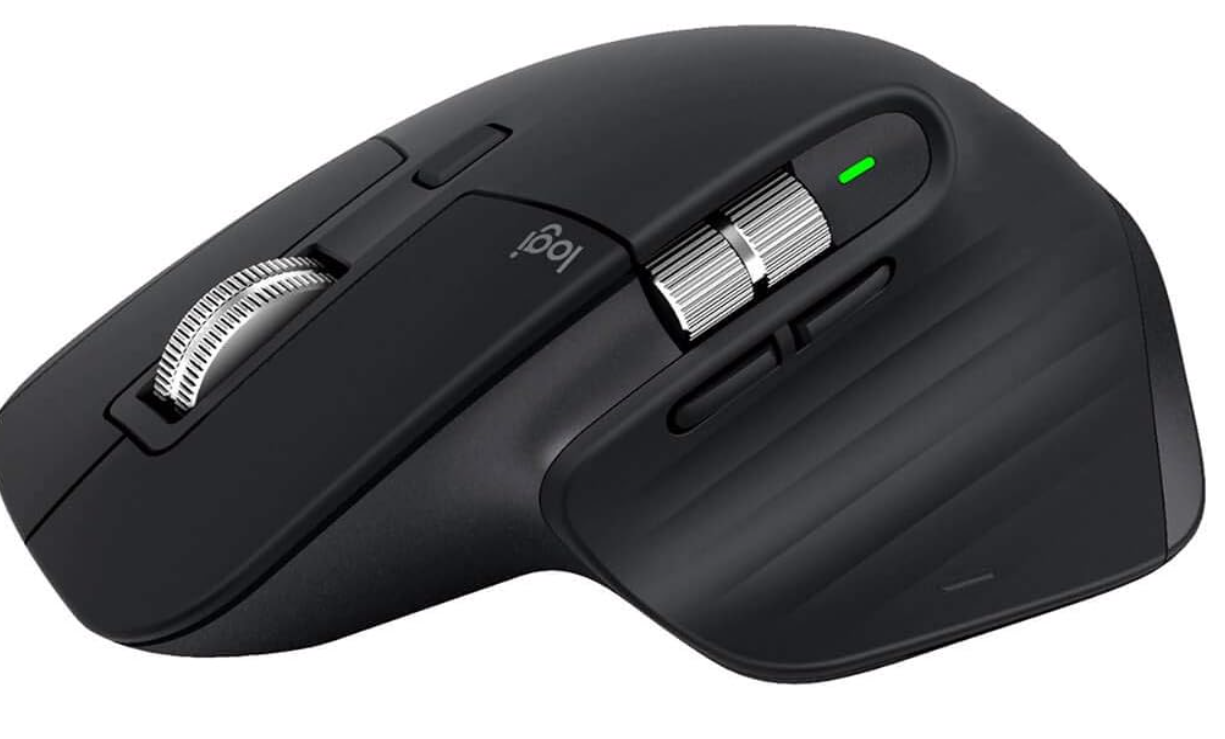
The Logitech MX Master 3 Wireless Mouse is a premium productivity mouse designed for professionals who need comfort, precision, and advanced control during long work sessions. It features an ergonomic design, MagSpeed electromagnetic scrolling, customizable buttons, and support for multiple connected devices.
By TechScaleMedia Editorial · Updated July 2026 · 11 min read
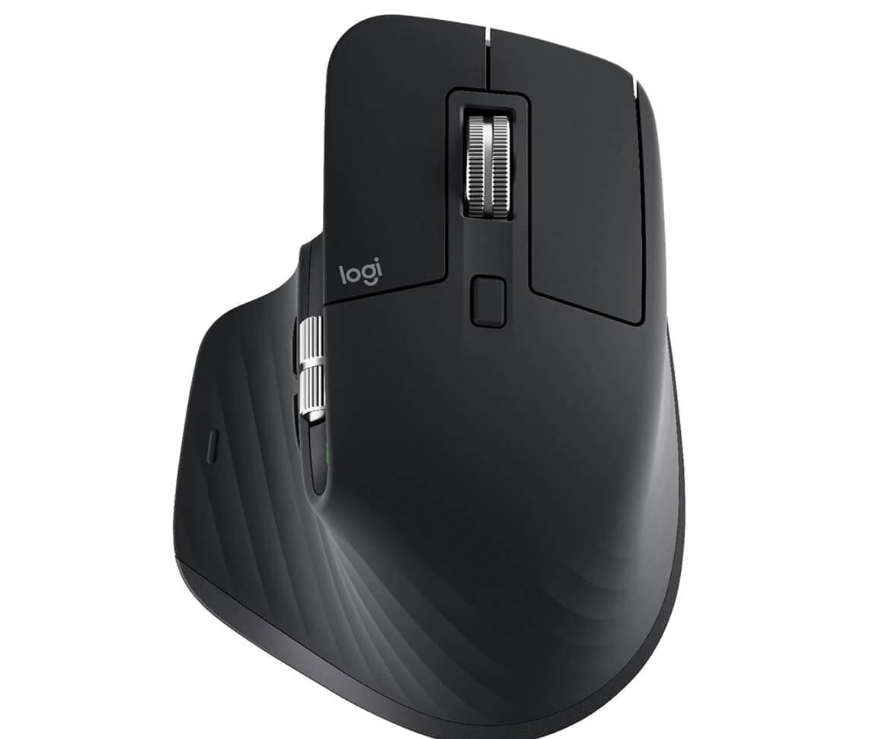
Unlike standard wireless mice, the MX Master 3 allows users to create personalized workflows through Logi Options+ software, making it useful for office work, creative tasks, programming, and multitasking across multiple computers.
This guide explains how to set up Logitech MX Master 3, connect it through Bluetooth or a wireless receiver, customize buttons, configure scrolling features, use Logitech Flow, manage battery life, and optimize the mouse for productivity.
How Do You Use Logitech MX Master 3?
Quick Answer
- Charge the mouse using USB-C.
- Connect through Bluetooth or Logi Bolt receiver.
- Install Logi Options+ software.
- Customize buttons and gestures.
- Adjust MagSpeed scrolling.
- Configure the thumbwheel.
- Pair multiple devices.
- Enable Logitech Flow.
- Create app-specific profiles.
- Update firmware regularly.
Prerequisites
Before you begin, you’ll need:
- Logitech MX Master 3 mouse
- USB-C charging cable
- Computer with Bluetooth or USB port
- Logi Options+ software
- Logi Bolt or Unifying receiver (if using wireless receiver mode)
- Internet connection for software updates
Create a Workflow Manually (Recommended for Beginners)
If you’re new to productivity mice, using your first Logitech MX Master 3 is the best way to understand how the device actually works.
Step 1: Charge the Mouse
Connect the MX Master 3 using the included USB-C cable.
Charge it fully before extended use. The rechargeable battery provides weeks of usage depending on settings and daily workload.
Step 2: Connect the Mouse
Choose your preferred connection method:
Bluetooth Connection
- Turn on Bluetooth on your computer.
- Press and hold the Easy-Switch button.
- Select the MX Master 3 from available devices.
Wireless Receiver Connection
- Plug the Logi Bolt or compatible receiver into your computer.
- Follow the pairing instructions.
A dedicated receiver can provide a stable connection for office environments.
Step 3: Install Logi Options+ Software
Download and install Logi Options+ software from Logitech.
The software unlocks advanced features, including:
- Button customization
- Gesture controls
- App-specific settings
- Battery monitoring
- Firmware updates
Step 4: Customize Mouse Buttons
Open Logi Options+ and assign actions to the available controls.
You can customize:
- Thumb button
- Side buttons
- Gesture button
- Scroll controls
Common shortcuts include:
- Copy and paste
- Browser navigation
- Window switching
- Application commands
Step 5: Configure MagSpeed Scrolling
The MagSpeed electromagnetic scrolling system allows fast and precise navigation.
Choose between:
- Ratchet mode → controlled click-by-click scrolling
- Free-spin mode → fast scrolling through long documents and webpages
The mouse can also automatically switch modes based on scrolling speed.
Step 6: Customize the Thumbwheel
The horizontal thumbwheel provides additional control.
You can assign it for:
- Horizontal scrolling
- Zooming
- Switching browser tabs
- Timeline navigation in creative apps
This feature is especially useful for designers, editors, and multitaskers.
Step 7: Connect Multiple Devices
The MX Master 3 can pair with up to three computers.
Use the Easy-Switch button on the bottom of the mouse to move between connected devices quickly.
This is useful for users who switch between:
- Work laptop
- Personal computer
- Tablet
Step 8: Enable Logitech Flow
If you use multiple computers, activate Logitech Flow through Logi Options+.
Flow allows you to:
- Move the cursor between computers
- Copy and paste text
- Transfer files between supported devices
It creates a smoother multi-computer workflow without switching accessories.
Step 9: Create App-Specific Profiles
Set different button layouts for different applications.
Examples:
- Browser shortcuts for web work
- Editing controls for design software
- Productivity shortcuts for office apps
Profiles allow the mouse to adapt automatically to your workflow.
Step 10: Monitor Battery and Update Firmware
Use Logi Options+ to check battery status and install firmware updates.
Updates may improve:
- Connection stability
- Compatibility
- Performance
- Feature reliability
Ready to improve your workflow?
Follow this step-by-step guide to set up your MX Master 3 and unlock its full productivity features.
How Can You Use a Logitech MX Master 3 More Efficiently?
Tips
Customize High-Frequency Actions First
Assign shortcuts to the buttons you use most often, such as copy, paste, switching apps, or browser navigation.
Match Settings to Your Workflow
Create different button layouts depending on whether you are browsing, editing, coding, or handling office tasks.
Adjust Pointer Sensitivity
Set cursor speed based on your display size and personal preference for smoother navigation.
Use the Thumbwheel Efficiently
Assign the thumbwheel to tasks like horizontal scrolling, zooming, or timeline navigation to reduce unnecessary clicks.
Take Advantage of Gesture Controls
Use gesture commands to quickly access multiple actions without creating extra shortcuts.
How Can You Avoid Common Logitech MX Master 3 Errors?
Common Mistakes
Using the Mouse Without Configuration
The default settings do not take full advantage of the MX Master 3’s customization features.
Creating Too Many Complicated Shortcuts
Over-customizing can make controls harder to remember and reduce workflow efficiency.
Ignoring Connection Compatibility
Some devices may require Bluetooth support or a compatible receiver for proper operation.
Blocking the Sensor Area
Dust or uneven surfaces can affect tracking accuracy and mouse performance.
Switching Devices Without Proper Setup
Unorganized device pairing can make switching between computers confusing.
How Can You Get the Most Value from a Logitech MX Master 3?
Best Practices
Keep Logi Options+ Updated
Regular software updates help maintain compatibility and improve available features.
Maintain Comfortable Hand Position
Keep your wrist relaxed and use a natural grip to reduce fatigue during extended use.
Monitor Battery Usage
Recharge the mouse before important tasks or long work sessions to avoid interruptions.
Protect the Mouse During Travel
Store it safely in a laptop bag or protective case when moving between locations.
Review Your Setup Occasionally
Update button assignments and profiles as your work habits change.
How Can You Troubleshoot Logitech MX Master 3 Effectively?
Troubleshooting
Mouse Is Not Connecting
Restart Bluetooth, reconnect the receiver, or remove and pair the device again.
Buttons Are Not Working Correctly
Open Logi Options+ and check button assignments or active profiles.
Scrolling Feels Incorrect
Adjust the scrolling mode in Logi Options+ and choose between ratchet or free-spin settings.
Logitech Flow Is Not Working
Confirm that both computers are connected to the same network and have Logi Options+ installed.
Battery Drains Quickly
Reduce unnecessary features, check for firmware updates, and ensure the mouse is fully charged.
Frequently Asked Questions
How long does MX Master 3 battery last?
The battery can typically last several weeks on a full charge depending on usage patterns and settings.
Can MX Master 3 connect to multiple computers?
Yes. It supports up to three devices and allows quick switching using the Easy-Switch button.
What is MagSpeed scrolling?
MagSpeed is Logitech’s electromagnetic scroll technology that provides fast, quiet, and precise scrolling with adjustable modes.
Is MX Master 3 good for office work?
Yes. Its ergonomic design, customizable controls, and multi-device support make it one of the most popular productivity mice for professionals.
What is Logitech Flow??
Logitech Flow allows compatible Logitech devices to control multiple computers and move content between them seamlessly.
Conclusion
The Logitech MX Master 3 Wireless Mouse is more than a basic pointing device. With ergonomic comfort, customizable controls, MagSpeed scrolling, and multi-device features, it helps professionals create a faster and more efficient workflow.
By setting up Logi Options+, customizing shortcuts, and using features like Logitech Flow, you can transform the MX Master 3 into a personalized productivity tool for office work, creative projects, and multitasking.
Upgrade Your Productivity Setup Today
Set up your Logitech MX Master 3 Wireless Mouse and experience smoother navigation, smarter controls, and a more efficient workflow. Customize every feature to match your work style and get more done with less effort.