How to Use the Hitron CODA56 DOCSIS 3.1 Cable Modem: A Complete Beginner’s Step-by-Step Guide
The Hitron CODA56 DOCSIS 3.1 Cable Modem is a high-speed modem-only device designed for cable internet connections. It supports multi-gigabit internet plans through its 2.5 Gbps Ethernet port and is intended to be paired with a separate Wi-Fi router. Unlike a modem-router combo, the CODA56 does not provide Wi-Fi on its own.
By TechScaleMedia Editorial · Updated July 2026 · 11 min read
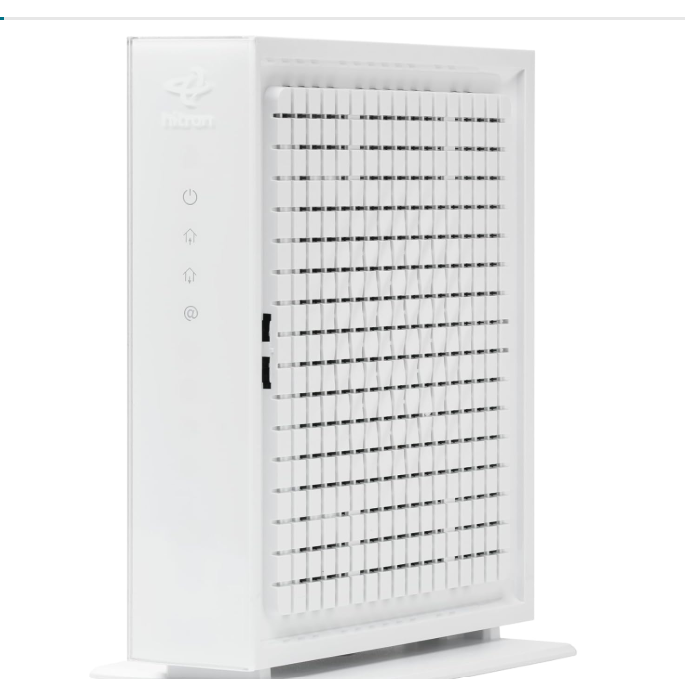
Although setup is straightforward, you’ll need to activate the modem with your internet service provider (ISP) and connect it correctly to your router.
This guide explains how to install the Hitron CODA56, activate it, troubleshoot common issues, and keep your connection running smoothly.
How Do You Use the Hitron CODA56 Cable Modem?
Quick Answer
- Verify ISP compatibility.
- Connect the coaxial cable.
- Connect the modem to your router.
- Power on the modem.
- Activate it with your ISP.
- Confirm your router receives an internet connection.
- Run a speed test.
- Keep the modem firmware updated automatically.
Prerequisites
Before getting started, you’ll need:
- Hitron CODA56 DOCSIS 3.1 Cable Modem
- Active cable internet service
- Compatible Wi-Fi router
- Coaxial cable
- Ethernet cable
- ISP account information
Create a Workflow Manually (Recommended for Beginners)
If you’re new to cable modems, setting up your first Hitron CODA56 Cable Modem is the best way to understand how the platform actually works.
Step 1: Check ISP Compatibility
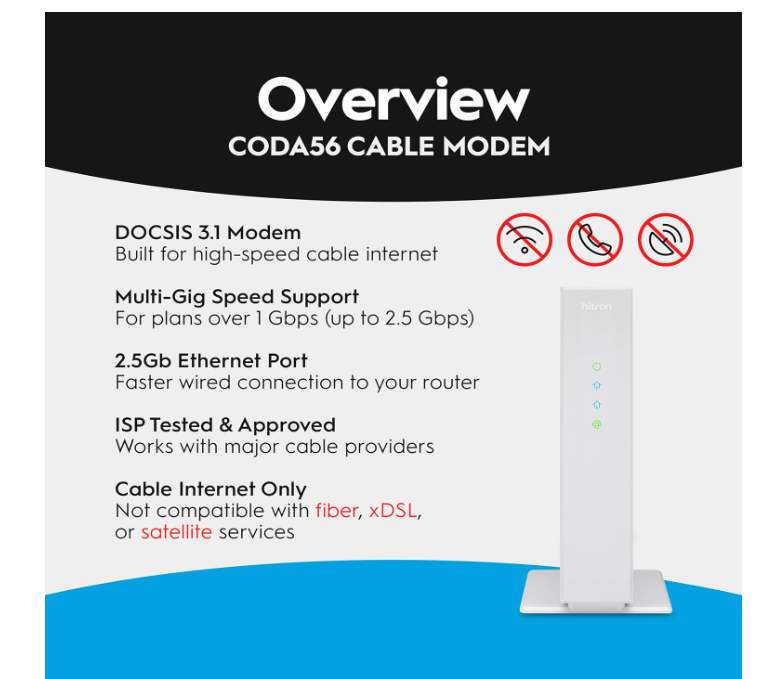
Confirm that your cable internet provider supports the Hitron CODA56. This modem works with cable internet only and is not compatible with fiber or DSL services.
Step 2: Connect the Coaxial Cable
Connect the coaxial cable from the wall outlet to the modem’s Cable port.
Step 3: Connect Your Router
Use an Ethernet cable to connect the modem’s 2.5 Gbps Ethernet port to your router’s WAN/Internet port.
Step 4: Power On the Modem
Turn on the modem and wait until the Power, Downstream (DS), Upstream (US), and Online lights remain solid.
Step 5: Activate the Modem
Activate the modem using your ISP’s website, mobile app, or customer support. You may need the modem’s MAC address and serial number.
Step 6: Verify the Internet Connection
Open your router’s management page and confirm it has received a WAN IP address from your ISP.
Step 7: Test Your Internet Speed
After activation, run a speed test to verify you’re receiving the speeds included in your internet plan.
Ready to upgrade your home network?
Follow the steps below to get your cable internet online quickly.
How Can You Use Hitron CODA56 Cable Modem More Efficiently?
Tips
Keep Your ISP Account Information Ready
Having your account number and activation details available can speed up the installation process.
Wait for All Status Lights
Allow the modem to finish connecting before opening your router settings or testing the internet.
Use a Quality Coaxial Outlet
If your home has multiple cable outlets, choose one that provides the strongest and most stable signal.
Label the Modem
Write the modem’s model name or installation date on a small label to make future maintenance easier.
Test Your Internet After Activation
Run a speed test from a wired device first to verify the modem is working correctly before testing Wi-Fi.
How Can You Avoid Common Hitron CODA56 Cable Modem Errors?
Common Mistakes
Expecting Built-In Wi-Fi
The Hitron CODA56 is a modem only and requires a separate router to create a wireless network.
Connecting the Ethernet Cable Before the Router Is Ready
Complete the router setup properly after the modem has established an internet connection.
Using an Inactive Cable Outlet
Not every coaxial outlet in a home is connected to the ISP’s active service line.
Ignoring ISP Activation Instructions
Different cable providers have different activation procedures, so always follow your ISP’s instructions.
Checking Speeds Too Soon
Internet performance may not stabilize immediately after activation, so wait until the modem is fully registered.
How Can You Get the Most Value from Hitron CODA56 Cable ModeHitron CODA56 Cable Modem?
Best Practices
Record Important Device Information
Keep a copy of the modem’s MAC address, serial number, and activation details for future reference.
Inspect Cable Connections Occasionally
Check coaxial and Ethernet cables every few months to ensure they remain secure and undamaged.
Monitor Internet Performance Over Time
Run occasional speed tests to identify changes that may indicate a service or equipment issue.
Pair the Modem with a Modern Router
A high-quality router helps you take full advantage of the modem’s capabilities and newer internet plans.
Contact Your ISP Before Resetting the Modem
If the connection suddenly stops working, verify there isn’t an ISP outage before performing a factory reset.
How Can You Troubleshoot Hitron CODA56 Cable Modem Effectively?
Troubleshooting
Online Light Won’t Turn On
Check the coaxial cable and confirm the modem has been activated by your ISP.
No Internet Connection
Restart both the modem and router, then verify the router’s WAN connection.
Slow Speeds
Use a compatible router and Ethernet cable, then run another speed test.
Router Doesn’t Detect the Modem
Reconnect the Ethernet cable and restart the router.
Activation Failed
Verify the MAC address and contact your ISP if the modem still isn’t registered.
Frequently Asked Questions
Does the Hitron CODA56 include Wi-Fi?
No. It is a modem only and requires a separate Wi-Fi router.
Does it work with fiber internet?
No. It is designed only for compatible cable internet providers.
Why do I need a router?
The modem connects your home to your ISP, while the router shares that internet connection with your wired and wireless devices.
What is the 2.5 Gbps Ethernet port for?
It supports faster wired connections for compatible routers and multi-gigabit internet plans.
Does the modem need manual firmware updates?
No. Firmware updates are generally provided automatically by your cable internet provider.
Conclusion
The Hitron CODA56 DOCSIS 3.1 Cable Modem is an excellent option for cable internet users who want a high-performance standalone modem with support for multi-gigabit speeds. By pairing it with a compatible router and completing the ISP activation process correctly, you can enjoy a fast, stable, and reliable home internet connection.
Unlock Faster Cable Internet Performance
Set up your Hitron CODA56 DOCSIS 3.1 Cable Modem with a compatible Wi-Fi router to take full advantage of your cable internet plan. With the right installation and activation, you’ll enjoy reliable, high-speed connectivity for streaming, gaming, remote work, and everyday browsing.