How to Use Sonos: A Beginner’s Step-by-Step Guide
A modern home audio system should provide high-quality sound without complicated wiring or professional installation. Sonos makes this possible with a wireless ecosystem of smart speakers, soundbars, and subwoofers that connect through Wi-Fi and work together through the Sonos app.
By TechScaleMedia Editorial · Updated July 2026 · 11 min read
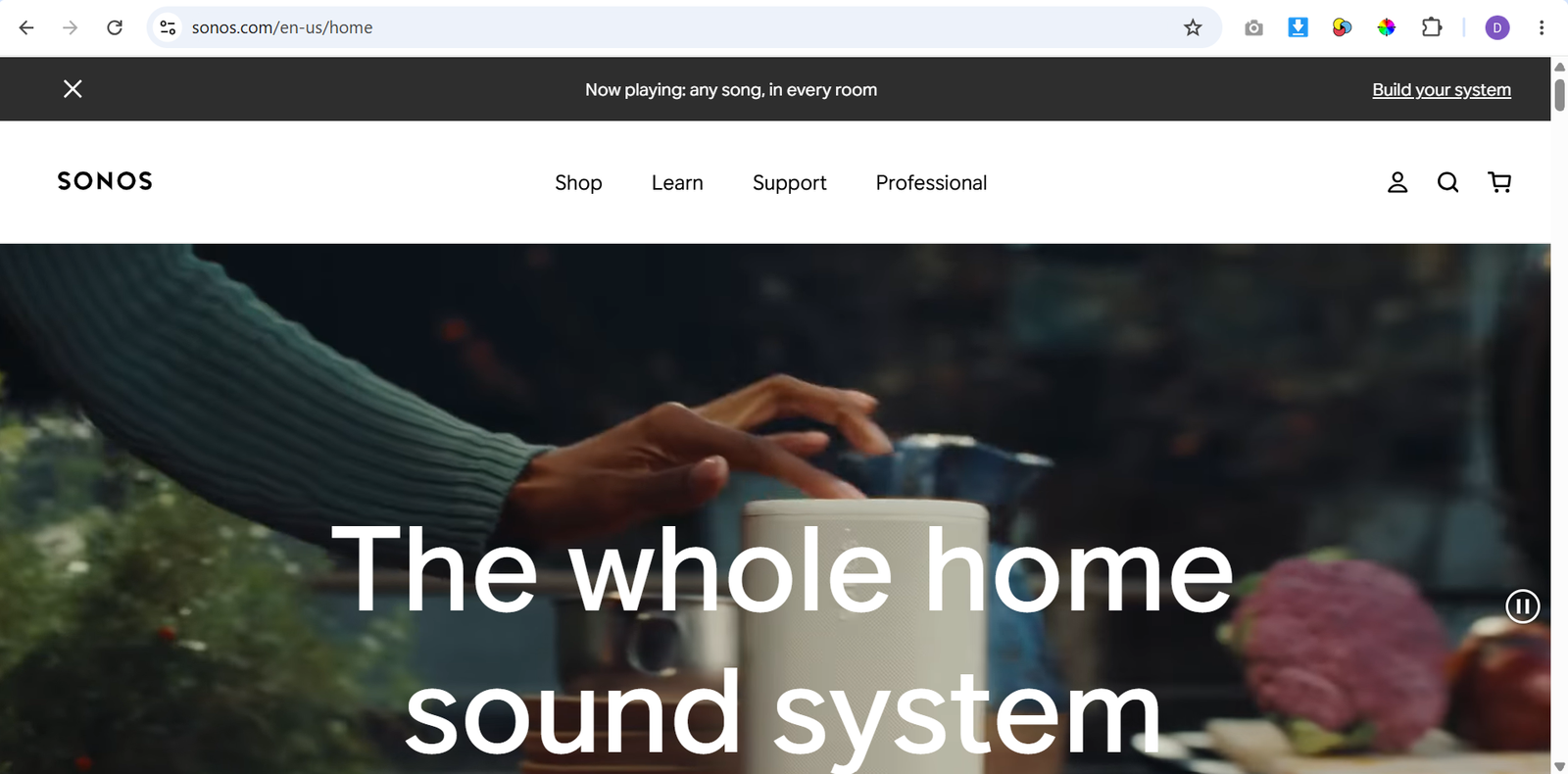
With Sonos, users can stream music, podcasts, and TV audio, control speakers from one place, create different listening zones, and build a complete home theater setup. The system is designed for flexibility, allowing you to start with one speaker and expand over time.
In this guide, you’ll learn how to set up Sonos, connect your devices, organize rooms, stream content, configure TV audio, and customize your listening experience.
How Do You Use Sonos?
Quick Answer
To use Sonos:
- Install the Sonos app.
- Create an account.
- Add your speaker to your network.
- Assign a room name.
- Connect music services.
- Customize audio settings.
- Add additional speakers if needed.
Prerequisites
Before getting started, you’ll need:
- A Sonos speaker, soundbar, or subwoofer
- A smartphone or tablet
- The Sonos app
- A reliable Wi-Fi connection
- A streaming music account (optional)
- A compatible TV connection for soundbars
Create a Workflow Manually (Recommended for Beginners)
If you’re new to smart audio, setting up your first speaker in Sonos is the best way to understand how the platform actually works.
Step 1: Install the Sonos App
Download the Sonos app on your iOS or Android device.
After installation:
- Create a Sonos account.
- Sign in.
- Allow required permissions.
- Start the product setup process.
The app works as the main control center for adding devices, managing playback, and changing settings.
Step 2: Add Your Sonos Speaker
Connect your Sonos device to power and follow the setup instructions inside the app.
The setup process will help you:
- Detect your speaker.
- Connect it to Wi-Fi.
- Install software updates.
- Complete device registration.
Once connected, your speaker becomes part of your home audio network.
Step 3: Assign a Room Name
Give each speaker a unique room location.
Examples:
- Living Room
- Bedroom
- Kitchen
- Office
Room names make it easier to identify devices when controlling multiple speakers from the app.
Step 4: Connect Music Services
Add your preferred audio platforms through the Sonos app.
You can connect services such as:
- Spotify
- Apple Music
- Amazon Music
- Podcasts
- Internet radio
After linking accounts, you can browse and play content directly through Sonos.
Step 5: Create a Multi-Room Audio Setup
If you own multiple Sonos devices, you can create a whole-home audio system.
You can:
- Combine speakers for synchronized playback.
- Separate rooms for individual listening.
- Control volume for each location.
- Move audio between rooms.
This makes it possible to enjoy the same entertainment throughout your home or different content in separate areas.
Step 6: Connect a Sonos Soundbar to Your TV
Sonos soundbars can improve your television audio experience.
To connect a soundbar:
- Plug it into your TV using HDMI-ARC or HDMI-eARC.
- Follow the Sonos app instructions.
- Complete TV audio configuration.
A properly configured soundbar provides clearer dialogue, stronger bass, and a more immersive viewing experience.
Step 7: Optimize Audio With Trueplay
Supported Sonos devices include Trueplay tuning, which adjusts sound based on your room environment.
The feature analyzes factors such as:
- Room layout
- Speaker position
- Surrounding surfaces
After tuning, the speaker automatically adjusts audio output for a more balanced listening experience.
Step 8: Enable Voice Control
Sonos supports hands-free operation through compatible voice assistants.
Available options include:
- Amazon Alexa
- Sonos Voice Control
You can use voice commands to:
- Start music playback.
- Change volume.
- Skip songs.
- Control supported functions.
Step 9: Create Scheduled Playback
The Sonos app allows you to automate audio activities.
You can schedule:
- Morning wake-up music.
- Regular playback times.
- Daily listening routines.
Scheduled playback helps integrate your audio system into everyday activities.
Step 10: Adjust Room-Specific Audio Settings
Customize each speaker based on your preferences.
You can modify:
- Bass levels
- Treble settings
- Loudness options
- Volume limits
Different settings can be applied to different rooms depending on how each space is used.
Ready to create a connected home audio system?
Follow this guide to set up your Sonos speakers and get the most from your wireless sound setup.
How Can You Get the Most Value from Sonos?
Tips
- Place speakers at ear level when possible for better sound quality.
- Keep your Sonos devices connected to a strong Wi-Fi signal.
- Use simple room names that are easy to recognize.
- Start with one speaker before expanding your system.
- Check app updates regularly to access new features.
What Should You Avoid When Using Sonos?
Common Mistakes
- Setting up speakers before choosing ideal locations.
- Using weak Wi-Fi connections for multiple devices.
- Adding too many speakers without planning room placement.
- Ignoring software updates during setup.
- Connecting streaming accounts with incorrect login details.
How Can You Maximize Your Sonos Experience?
Best Practices
- Plan speaker placement before creating a multi-room setup.
- Use different room groups based on your daily listening habits.
- Keep streaming accounts and device software updated.
- Adjust audio settings individually instead of using identical settings everywhere.
- Expand your Sonos system gradually as your needs grow.
How Can You Troubleshoot Sonos Effectively?
Troubleshooting
Sonos Speaker Is Not Detected
Make sure your phone and speaker are connected to the same network, then restart the setup process.
Audio Keeps Cutting Out
Check your Wi-Fi strength, restart your router, and reduce network congestion.
TV Sound Has Delay
Confirm the HDMI-ARC/eARC connection and adjust TV audio delay settings.
Music Service Cannot Connect
Reconnect the service through the Sonos app and verify account details.
Speaker Sound Is Unbalanced
Run Trueplay tuning again or reposition the speaker for improved performance.
Frequently Asked Questions
What is Sonos used for?
Sonos is a wireless home audio system used for streaming music, podcasts, TV sound, and creating connected speaker setups across multiple rooms.
Does Sonos work without Wi-Fi?
Sonos is designed to work through Wi-Fi because it allows multiple speakers to communicate and provide synchronized playback.
Can I use Spotify with Sonos?
Yes. Spotify and other supported music services can be connected through the Sonos app.
Can Sonos speakers play different music in different rooms?
Yes. Multiple Sonos speakers can operate independently, allowing different audio content in separate rooms.
How does Sonos Trueplay improve sound?
Trueplay analyzes room acoustics and adjusts speaker settings automatically to create better-balanced audio.
Can Sonos connect to a television?
Yes. Compatible Sonos soundbars connect through HDMI-ARC, HDMI-eARC, or supported optical connections.
Does Sonos support voice assistants?
Yes. Compatible Sonos products support voice control through Amazon Alexa and Sonos Voice Control.
Conclusion
Sonos provides a simple way to build a flexible home audio system without complicated wiring. Its app-based control, wireless connectivity, and customizable speaker options make it suitable for music listening, entertainment, and home theater setups.
Whether you start with a single speaker or create a complete multi-room system, Sonos allows you to design an audio experience that matches your home and lifestyle.
Build a stronger foundation for immersive home audio and wireless entertainment with Sonos.
Start using Sonos today to enjoy wireless music streaming, immersive TV audio, and a personalized home sound system designed for every room.