How to Buy & Activate Software on MyChoiceSoftware: A Beginner’s Step-by-Step Guide
Learn how to buy, download, and activate software on MyChoiceSoftware with this beginner-friendly step-by-step guide to enjoy a quick, secure, and hassle-free setup.
By TechScaleMedia Editorial · Updated July 2026 · 11 min read
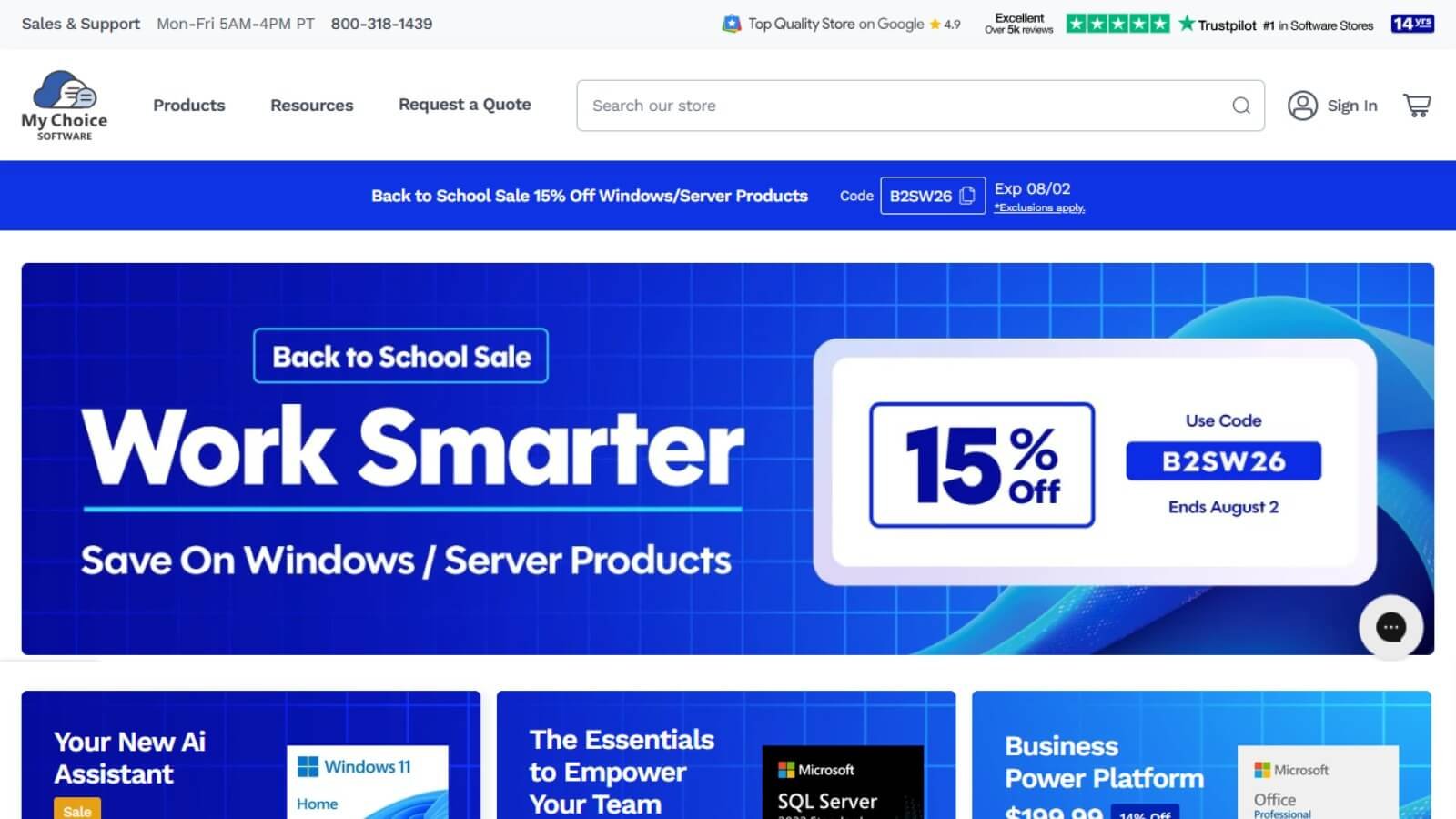
Purchasing legitimate software licenses shouldn’t involve technical confusion or steep full-retail price tags. MyChoiceSoftware serves as an online retailer for genuine Microsoft software licenses, security applications, and tailored IT licensing solutions. Whether you need a single Windows product key for personal use or server licenses for an organization, MyChoiceSoftware streamlines digital software acquisition with automated key delivery and setup guidance.
In this guide, you’ll learn how to navigate MyChoiceSoftware step by step to select the right license model, secure your order, and activate your software without setup hassles.
Ready to upgrade your tech stack with genuine licenses? Explore MyChoiceSoftware to find discounted Microsoft product keys and simplify your software deployment today.
How do you use MyChoiceSoftware?
Quick Answer
- Locate your software by category or product name.
- Select the correct license type (Retail, OEM, or Volume).
- Complete checkout with your preferred payment method.
- Retrieve your product key and link from your confirmation email.
- Download and install the software setup package.
- Activate the product inside system or application settings.
- Contact technical support if activation issues arise.
- Apply coupon codes or reward points to save on orders.
Prerequisites
Before getting started, you’ll need:
- Active Email Address: To receive digital keys and installation links.
- Internet Connection: Required for installer downloads and online key activation.
- Compatible Hardware: Device meeting the target software’s minimum system requirements.
- Administrator Privileges: Rights to install new software on your operating system.
- Payment Method: Credit card, PayPal, or enterprise purchase order.
Step-by-Step Instructions
Follow these simple steps to purchase genuine software from MyChoiceSoftware and activate it successfully on your device.
Step 1: Browse Products by Category or License Type
Navigate to MyChoiceSoftware and search for your required application or system software.
Product categories include:
- Operating Systems: Windows 11 Home, Windows 11 Pro, and workstation editions.
- Productivity Suites: Microsoft 365, Office Home & Business, Office Professional.
- Server Infrastructure: Microsoft SQL Server, Windows Server, and CALs (Client Access Licenses).
- Specialized Software: Microsoft Project and Microsoft Visio.
- Security & Utilities: Antivirus suites and system utility tools.
Step 2: Select the Right License Model
Review the licensing model to ensure it matches your hardware plans and usage environment.
- Retail License: Bound to the user. Can be transferred to a replacement computer in the future (one active PC at a time).
- OEM License: Bound to the computer’s motherboard. Non-transferable, but offered at a significantly lower cost.
- Volume / CSP Licensing: Tailored for businesses and organizations requiring centralized management across multiple user seats.
Step 3: Add to Cart and Complete Checkout
Add the chosen license to your cart and head to the secure checkout portal.
- Double-check product editions (e.g., Home vs. Pro).
- Verify your email address carefully to avoid delivery misdirection.
- Submit payment via card or digital wallet.
Step 4: Retrieve Your Digital Product Key
Once processed, check your email inbox for your fulfillment message containing the download URL and 25-character product activation key.
Delivery Time: Key delivery is automated and typically arrives within minutes. Manual fraud verification may take up to 60 minutes during standard business hours.
Step 5: Download and Install the Application
Click the download link in your email or navigate to the official Microsoft setup portal (such as office.com or microsoft.com) to pull the official installation file directly.
- Open your computer’s Downloads folder.
- Launch the setup file (.exe or .iso).
- Follow the on-screen installation prompts.
Step 6: Activate Your License
Launch the newly installed software to input your product key.
- For Windows: Go to Start > Settings > System > Activation > Change Product Key, then enter your key.
- For Office Applications: Launch Word or Excel, navigate to Account > Change License, and paste your product key.
Step 7: Access Customer Support if Needed
If an error occurs during activation, leverage MyChoiceSoftware’s direct assistance channels:
- Live Chat: Instant help with activation codes.
- Phone Support: Assistance for complex business software or server deployment questions.
- Support Tickets: Help with order tracking and manual key verification.
Step 8: Redeem Rewards and Savings
Maximize value by taking advantage of promotional opportunities during checkout:
- Enter valid discount codes in the promo box prior to final payment.
- Register an account to earn redeemable loyalty points on all purchases.
Tips
Before purchasing, verify the software version, system requirements, and license type to ensure it matches your device and activation needs.
- Save Documentation: Store your digital receipt, download links, and key codes in a password manager or secure folder.
- Use Official Installers: Always download software directly from Microsoft or MyChoiceSoftware links to ensure file integrity.
- Verify Architecture Requirements: Check whether your system requires a 32-bit or 64-bit installer prior to setup.
Common Mistakes
- Purchasing OEM for Upgradable PCs: Buying an OEM key for a temporary computer, forgetting that OEM keys cannot transfer to a new motherboard.
- Purchasing Incorrect Software Editions: Buying Windows Home when corporate domain access requires Windows Pro.
- Omitting Server CALs: Purchasing Microsoft SQL Server or Windows Server without ordering required Client Access Licenses (CALs) for end users.
- Mistyping Contact Details: Entering an incorrect email during checkout, delaying digital delivery.
Troubleshooting
Product Key Returned an Error
Copy and paste the key directly from your email to prevent mistaking similar characters (such as ‘8’ vs. ‘B’ or ‘6’ vs. ‘G’).
Confirmation Email Has Not Arrived
Check your spam or junk folder. If over an hour has passed without an email, contact support to clear any manual security verification flags.
Software Fails Online Activation
Confirm your device has an active internet connection and that the installed build matches your purchased key edition (e.g., activating Windows Pro with a Home key will trigger a mismatch error).
License Reported as “In Use”
If a key prompts an “already in use” error on a fresh OS installation, use the built-in Microsoft Phone Activation Wizard or contact support to reset hardware binding.
Best Practices
- Consolidate Business Licenses: Keep all enterprise keys and CAL allocations stored in a centralized IT asset ledger.
- Look for Software Bundles: Save overall cost by purchasing OS and Office suites together during promotional sales.
- Audit Licensing Needs Annually: Evaluate user growth before renewing volume licensing agreements or expanding server deployment.
Frequently Asked Questions
Is MyChoiceSoftware a legitimate software retailer?
Yes. MyChoiceSoftware is an established online reseller providing genuine Microsoft software licenses, antivirus products, and enterprise IT solutions.
What is the main difference between OEM and Retail licenses?
An OEM license locks permanently to the first machine’s motherboard and cannot be moved to another computer. A Retail license can be transferred to a new PC if the original installation is deactivated.
How quickly will I receive my product key?
Digital delivery is usually instant (within minutes). During business hours, orders undergoing security verification take up to an hour.
Does MyChoiceSoftware offer business volume licensing?
Yes. They provide volume licensing arrangements and Cloud Solution Provider (CSP) options for businesses, educational institutions, and non-profits.
What should I do if my key does not work?
Verify that your installed software version matches the key you bought. If activation fails, reach out to MyChoiceSoftware customer support via live chat or phone for resolution.
Conclusion
MyChoiceSoftware simplifies software acquisition by combining genuine Microsoft product licensing, competitive pricing, and automated digital delivery. By selecting the correct license structure and following standard installation procedures, you can equip your personal or business devices with essential software quickly and securely.
Ready to Install Your New Software? Start Here
Ready to upgrade your system with genuine software licenses? Visit MyChoiceSoftware today to explore discounted Windows, Office, and server solutions with instant digital delivery!