How to Use Norton: A Beginner’s Step-by-Step Guide
Secure your devices and personal data with Norton by following this beginner-friendly step-by-step guide to install, set up, and use its essential security features for complete online protection.
By TechScaleMedia Editorial · Updated July 2026 · 11 min read
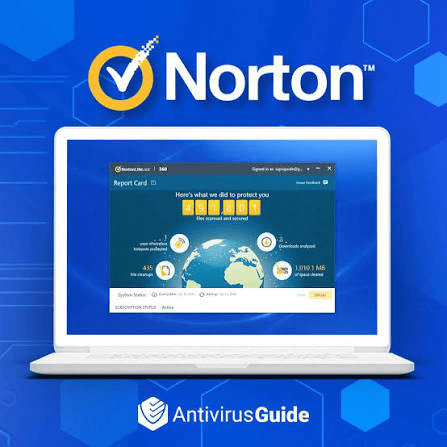
Keeping your devices safe from malware, ransomware, phishing attacks, and identity theft has become more challenging than ever. Simply installing basic antivirus software is no longer enough, especially if you frequently shop online, use public Wi-Fi, or store sensitive information on your devices. Norton solves this problem by combining antivirus protection, a secure VPN, password management, dark web monitoring, and other security tools into one easy-to-use platform.
In this guide, you’ll learn how to use Norton step by step to protect your devices, secure your online privacy, and take full advantage of its cybersecurity features.
Ready to safeguard your digital life? Try Norton and protect your devices, passwords, and personal information from today’s evolving cyber threats.
How Do You Use Norton?
Quick Answer
Using Norton is simple:
- Purchase a Norton subscription.
- Download and install Norton.
- Activate your subscription.
- Run your first Full System Scan.
- Enable Real-Time Protection.
- Configure Smart Firewall.
- Turn on Norton Secure VPN.
- Set up Password Manager.
- Enable Dark Web Monitoring.
- Schedule automatic scans and updates.
- Review your security dashboard regularly.
Prerequisites
Before getting started, you’ll need:
- A Norton account
- An active Norton subscription or product key
- A Windows, macOS, Android, or iOS device
- A stable internet connection
- Administrator permissions to install software
- Any existing antivirus software removed (recommended to avoid conflicts)
Step-by-Step Instructions
Follow these simple steps to install, set up, and use Norton to protect your devices from viruses, malware, phishing attacks, and other online threats.
Step 1: Purchase and Download Norton
Visit Norton’s official website and choose a subscription plan that fits your needs. Norton offers plans for individuals, families, and multiple devices.
After purchasing:
- Sign in to your Norton account.
- Go to your account dashboard.
- Download the installer for your operating system.
If you purchased Norton from a retail store, keep your product key ready for activation.
Step 2: Install and Activate Norton
Open the downloaded installer and follow the setup instructions.
Once installation is complete:
- Launch Norton.
- Sign in with your Norton account.
- Enter your product key if prompted.
- Wait for activation to complete.
After activation, Norton automatically downloads the latest virus definitions to ensure your device is protected against the newest threats.
Step 3: Run Your First Full System Scan
Before using your computer normally, perform a complete system scan to detect any existing malware or suspicious files.
To start a scan:
- Open the Norton dashboard.
- Select Security.
- Click Scans.
- Choose Full System Scan.
- Click Start Scan.
Depending on the size of your hard drive, the scan may take several minutes to complete.
If Norton detects any threats, follow the recommended actions to quarantine or remove them.
Step 4: Enable Real-Time Protection
Real-Time Protection continuously monitors files, downloads, and applications while you use your device.
To verify it’s enabled:
- Open Settings.
- Select Antivirus.
- Confirm that Auto-Protect is turned on.
This feature automatically blocks viruses, ransomware, spyware, and other malicious software before they can infect your system.
Step 5: Configure Smart Firewall
Norton’s Smart Firewall monitors network traffic and helps prevent unauthorized access to your computer.
To customize your firewall:
- Open Settings.
- Select Firewall.
- Review application permissions.
- Allow trusted programs.
- Block unknown or suspicious applications if necessary.
The default settings work well for most users, but advanced users can create custom firewall rules for additional control.
Step 6: Turn On Norton Secure VPN
Using public Wi-Fi without encryption can expose your personal information to hackers. Norton Secure VPN encrypts your internet connection to improve online privacy.
To enable it:
- Open the Norton dashboard.
- Select Secure VPN.
- Turn the VPN on.
- Choose your preferred server location if needed.
The VPN is especially useful when traveling or accessing sensitive accounts on public networks.
Step 7: Set Up Password Manager
Strong, unique passwords are one of the best ways to protect your online accounts.
To configure Password Manager:
- Install the Norton Password Manager browser extension.
- Sign in using your Norton account.
- Import existing passwords if available.
- Save new login credentials as you browse.
- Use the built-in password generator to create secure passwords.
This helps reduce the risk of password reuse and improves account security.
Step 8: Enable Dark Web Monitoring
If your personal information appears in a known data breach, Norton can notify you so you can take action quickly.
To enable monitoring:
- Open your Norton account.
- Navigate to Dark Web Monitoring.
- Add your email addresses and other supported personal information.
- Save your settings.
You’ll receive alerts if your monitored information is found on the dark web.
Step 9: Schedule Automatic Scans and Updates
Keeping Norton updated is essential for maintaining protection against newly discovered threats.
To automate maintenance:
- Open Settings.
- Select Administrative Settings.
- Schedule weekly Full System Scans.
- Enable automatic LiveUpdate.
Regular updates ensure Norton always uses the latest virus definitions and security improvements.
Step 10: Review Your Security Dashboard
The Norton dashboard provides a quick overview of your device’s security status.
Regularly review:
- Protection status
- Recent scans
- Detected threats
- VPN connection
- Password Manager activity
- Subscription status
- Security recommendations
Checking the dashboard periodically helps you identify and resolve security issues before they become serious.
Tips
Keep Norton updated, enable real-time protection, run regular scans, and use its built-in security features to keep your devices safe from the latest online threats.
- Run a Full System Scan at least once a week.
- Keep Real-Time Protection enabled at all times.
- Turn on Secure VPN when using public Wi-Fi.
- Use Password Manager to generate strong passwords.
- Enable Dark Web Monitoring for all important email addresses.
- Keep Norton updated automatically.
- Review security alerts instead of ignoring notifications.
- Back up important files regularly for extra protection against ransomware.
Common Mistakes
- Disabling Real-Time Protection to improve performance.
- Ignoring virus definition updates.
- Using weak or reused passwords.
- Forgetting to activate Secure VPN on public networks.
- Skipping regular system scans.
- Installing multiple antivirus programs on the same device.
- Ignoring security alerts from the Norton dashboard.
Troubleshooting
Norton won’t install
Remove any existing antivirus software, restart your device, and try installing Norton again.
Full System Scan is taking too long
Large storage drives require more time to scan. Allow the process to finish without interruption.
VPN won’t connect
Check your internet connection, switch to another VPN server, or restart the Norton application.
Subscription shows expired
Sign in to your Norton account and verify your subscription status. Renew or reactivate your license if necessary.
Password Manager isn’t autofilling
Make sure the browser extension is installed, enabled, and you’re signed in to your Norton account.
Best Practices
- Enable every security feature included in your subscription.
- Schedule regular automatic scans instead of relying only on manual scans.
- Update your operating system alongside Norton.
- Monitor dark web alerts and change compromised passwords immediately.
- Use unique passwords for every online account.
- Review firewall permissions periodically.
- Check your security dashboard every week for recommended actions.
Frequently Asked Questions
Is Norton better than Windows Security?
Windows Security provides basic protection, while Norton offers additional features such as Secure VPN, Password Manager, Smart Firewall, Dark Web Monitoring, cloud backup, and identity protection.
Does Norton slow down my computer?
Modern versions of Norton are optimized for performance and generally have minimal impact on system speed during everyday use.
Can I use Norton on multiple devices?
Yes. Depending on your subscription, Norton can protect multiple Windows, Mac, Android, and iOS devices under one account.
Does Norton include a VPN?
Yes. Most Norton 360 plans include Norton Secure VPN for encrypted internet browsing.
How often should I run a Full System Scan?
Running a Full System Scan once a week is recommended, while Real-Time Protection should remain enabled continuously.
Can Norton remove existing malware?
Yes. Norton can detect, quarantine, and remove many types of malware, spyware, ransomware, trojans, and viruses already present on your device.
Is Norton suitable for families?
Yes. Many Norton plans support multiple devices, making them a good option for households that need comprehensive cybersecurity protection across several users.
Conclusion
Norton provides much more than traditional antivirus software. By combining malware protection, a secure VPN, password management, Smart Firewall, and dark web monitoring into a single platform, it helps protect your devices and personal information from a wide range of online threats. Following the steps in this guide will help you configure Norton correctly, strengthen your cybersecurity, and maintain a safer online experience.
Get Started with Norton in Minutes
Start using Norton today to protect your devices from malware, secure your internet connection with a VPN, manage your passwords safely, and stay ahead of evolving cyber threats with one comprehensive cybersecurity solution.