How to Use Synthesia: A Beginner’s Step-by-Step Guide
Learn how to use Synthesia to create professional AI videos with this beginner-friendly, step-by-step guide that covers everything from setup to exporting your first video.
By TechScaleMedia Editorial · Updated July 2026 · 11 min read
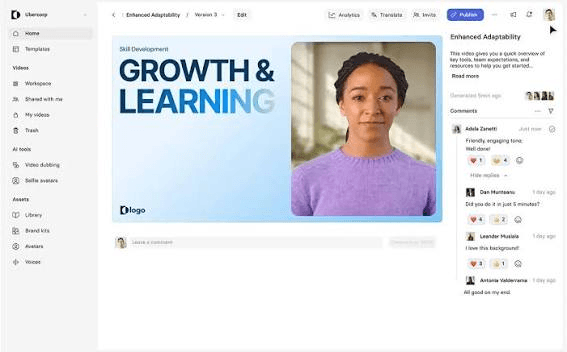
Creating professional videos often requires cameras, lighting, presenters, editing software, and hours of production time. For businesses that need training materials, product demos, or marketing videos in multiple languages, traditional video production can quickly become expensive and difficult to scale. Synthesia solves this problem by turning text into high-quality videos using realistic AI avatars and natural-sounding voices—no filming or video editing experience required.
In this guide, you’ll learn how to use Synthesia step by step to create engaging AI videos, customize avatars, and produce multilingual content for your business or audience.
Ready to create professional videos without a camera? Try Synthesia and turn your scripts into AI-powered videos in minutes.
How do you use Synthesia?
Quick Answer
Using Synthesia is simple:
- Create a Synthesia account.
- Choose a video template.
- Select an AI avatar.
- Add your script.
- Choose a language and voice.
- Customize your video.
- Preview and edit.
- Export and share your video.
Prerequisites
Before getting started, you’ll need:
- A Synthesia account
- A completed script
- Brand assets (optional)
- Images or screen recordings (optional)
- Internet connection
Step-by-Step Instructions
Follow these simple steps to create AI-powered videos with Synthesia, from signing up and choosing an avatar to generating and sharing your finished video.
Step 1: Create a New Video
Log in to Synthesia and create a new project.
You can either:
- Start with a blank project
- Use a pre-designed template
Templates are useful for training videos, product tutorials, onboarding, sales presentations, and internal communications.
Step 2: Choose an AI Avatar
Select a presenter from Synthesia’s avatar library.
You can choose avatars based on:
- Appearance
- Gender
- Profession
- Language
- Presentation style
If your plan supports it, you can also create a custom AI avatar for consistent brand communication.
Step 3: Add Your Script
Paste your script into the editor.
Write in a conversational style so the avatar sounds more natural.
For longer videos, divide the script into multiple scenes to improve pacing and viewer engagement.
Step 4: Select a Voice and Language
Choose the voice that best matches your audience.
Synthesia supports numerous languages and accents, making it easy to create localized videos for global viewers.
The platform automatically synchronizes the avatar’s lip movements with the selected language.
Step 5: Customize Your Video
Use the drag-and-drop editor to personalize your project.
You can add:
- Company logo
- Brand colors
- Background images
- Text overlays
- Call-to-action buttons
- Custom layouts
This helps maintain a professional and consistent brand identity.
Step 6: Add Supporting Visuals
Enhance your video by including visual elements that reinforce your message.
Examples include:
- Screen recordings
- Product screenshots
- Icons
- Charts
- Presentation slides
- Images
Combining visuals with the AI presenter makes information easier to understand.
Step 7: Preview and Refine
Watch the complete video before exporting.
Review:
- Script clarity
- Pronunciation
- Scene transitions
- Subtitle accuracy
- Visual alignment
Make any necessary adjustments to improve the viewing experience.
Step 8: Export and Share
Once everything looks correct, export your video in your preferred resolution.
You can publish it on:
- YouTube
- Learning Management Systems (LMS)
- Company websites
- Social media
- Internal knowledge bases
Tips
Get the best results in Synthesia by writing clear scripts, choosing the right AI avatar and voice, and previewing your video before publishing to ensure a polished final output.
- Keep each scene focused on one main idea.
- Write scripts using short, conversational sentences.
- Use branded templates to speed up future projects.
- Combine avatars with visuals instead of relying only on talking-head videos.
- Preview pronunciation for company names and technical terms.
Common Mistakes
- Writing long paragraphs that sound unnatural when spoken.
- Overloading scenes with too much on-screen text.
- Choosing an avatar that doesn’t match your audience or brand.
- Skipping the final preview before exporting.
- Using low-quality images or visuals that reduce the overall presentation quality.
Troubleshooting
Avatar pronunciation sounds incorrect
Edit the script or use pronunciation controls to improve difficult words and brand names.
Video feels too fast
Split longer sections into multiple scenes and shorten each paragraph.
Visual elements appear misaligned
Review the scene layout and reposition text, images, or graphics before exporting.
Export takes longer than expected
Large projects may require additional processing time. Wait for rendering to finish before downloading.
Subtitles contain errors
Review and edit the automatically generated captions before publishing.
Best Practices
- Create a reusable brand template for all company videos.
- Update training videos whenever products or processes change.
- Keep videos concise to maintain viewer attention.
- Use consistent fonts, colors, and branding across every project.
- Collect feedback from your team before publishing business-critical content.
Frequently Asked Questions
What is Synthesia used for? If repetitive you can remove
Synthesia is an AI video generation platform that creates professional videos using AI avatars and text-to-speech technology. It’s commonly used for training, onboarding, marketing, and educational content.
Can I create videos without recording myself?
Yes. Synthesia generates videos using AI avatars, so you don’t need a camera, microphone, or studio setup.
Does Synthesia support multiple languages?
Yes. Synthesia supports more than 140 languages and accents, making it easy to create localized videos for international audiences.
Can I create a custom AI avatar?
Yes. Eligible plans allow you to create a custom AI avatar based on a real person with proper consent.
Is Synthesia suitable for businesses?
Absolutely. Businesses use Synthesia for employee training, customer education, internal communication, product demonstrations, and marketing videos.
Conclusion
Synthesia makes professional video creation faster and more accessible by eliminating the need for cameras, studios, and complex editing software. With AI avatars, multilingual voice support, customizable templates, and simple editing tools, businesses and creators can produce high-quality videos in a fraction of the time. By following the steps in this guide, you can efficiently create engaging videos that educate, inform, and connect with your audience.
Ready to Make Professional AI Videos? Try Synthesia Now
Start using Synthesia today to create AI-powered videos, deliver professional presentations, and scale your video content across multiple languages—all without filming or hiring a production team.