How to Host a Website on RunCloud: A Beginner’s Step-by-Step Guide
Managing a website becomes much easier when you have the right hosting management platform. RunCloud is a cloud server management platform that helps you deploy, manage, and optimize websites on cloud providers without dealing with complex server configurations. By combining powerful automation with an intuitive dashboard, RunCloud makes it easier to host websites while maintaining excellent performance, security, and scalability.
By TechScaleMedia Editorial · Updated July 2026 · 11 min read
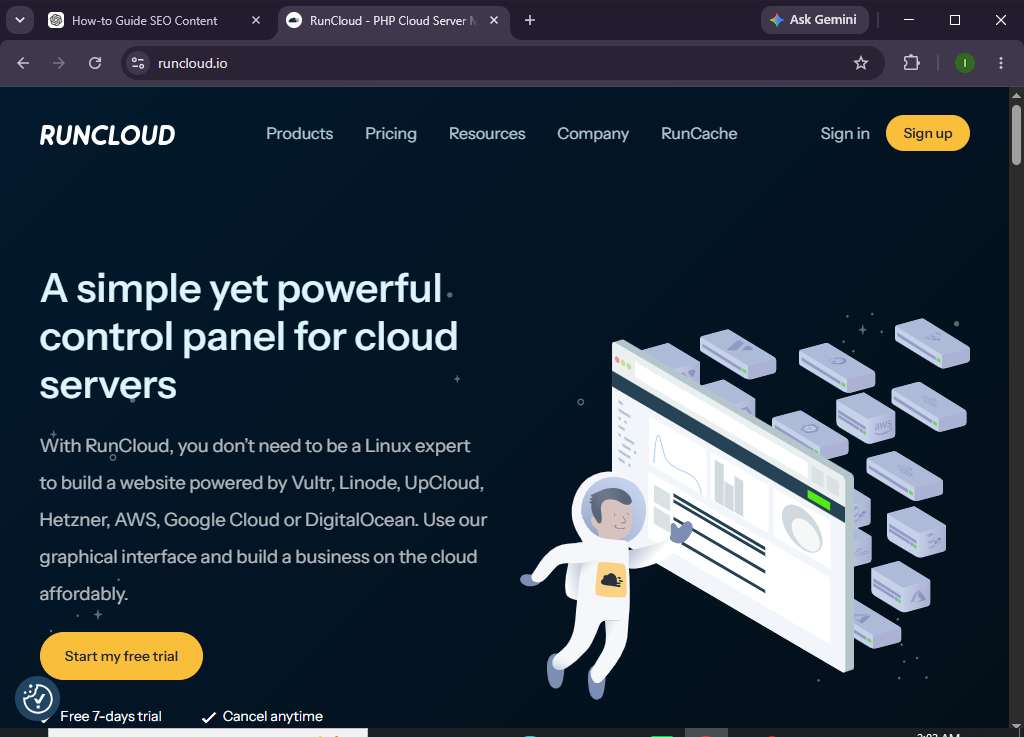
Whether you’re a freelancer, developer, agency, or business owner, RunCloud simplifies server management by offering features like automated backups, free SSL certificates, application monitoring, and one-click website deployment. This guide will show you how to host a website on RunCloud from start to finish.
How do you host a website on RunCloud?
Quick Answer
Hosting a website with RunCloud is straightforward:
- Create a RunCloud account.
- Connect a cloud server to your account.
- Log in to the RunCloud dashboard.
- Add a new web application.
- Connect your custom domain.
- Configure your DNS records.
- Enable a free SSL certificate.
- Upload your website files or install your preferred CMS.
- Test your website’s performance and functionality.
- Publish your website and monitor it regularly.
Quick Tip: Before creating your website, ensure your cloud server is properly connected to RunCloud for a smoother setup experience.
Prerequisites
Before you begin, you’ll need:
- A RunCloud account
- A cloud server from a supported provider
- A registered domain name
- A stable internet connection
- Website files or your preferred CMS
- Basic understanding of website hosting
Create a Workflow Manually (Recommended for Beginners)
If you’re new to server management, deploying your first website with RunCloud is the best way to understand how the platform actually works.
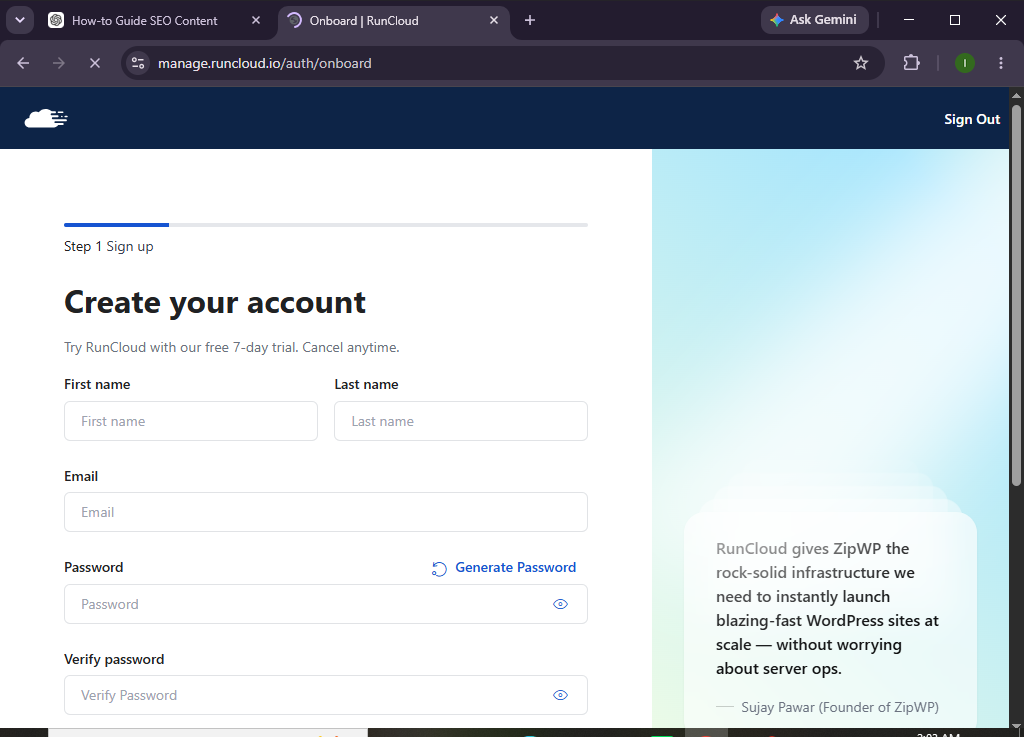
Step 1: Create a RunCloud Account
Visit the RunCloud website and register for an account.
After signing up:
- Verify your email address.
- Log in to your dashboard.
- Review the onboarding instructions.
Step 2: Connect Your Cloud Server
RunCloud works by managing your own cloud server.
Choose a supported cloud provider and connect your server by:
- Creating a new server instance.
- Copying the server credentials.
- Connecting the server to RunCloud.
- Waiting for server provisioning to complete.
Step 3: Access the RunCloud Dashboard
Once your server is connected, open your dashboard.
Here you can manage:
- Servers
- Web applications
- Databases
- SSL certificates
- Backups
- Users
- Monitoring tools
Take some time to explore the available features.
Step 4: Create a New Web Application
Click Create Web App.
You’ll need to:
- Select your server.
- Enter your domain name.
- Choose the application type.
- Configure basic settings.
RunCloud will automatically prepare your application.
Step 5: Connect Your Domain
To make your website accessible online:
- Add your domain inside RunCloud.
- Copy the server IP or DNS information.
- Log in to your domain registrar.
- Update the DNS records.
Wait until the DNS changes propagate.
Step 6: Enable SSL
Secure your website by enabling the free SSL certificate.
Verify:
- HTTPS is enabled.
- SSL status is active.
- Your website loads securely.
SSL helps protect visitor data and improves search engine trust.
Step 7: Upload Your Website
Now upload your website using one of these methods:
- Upload website files
- Install your preferred CMS
- Deploy using Git
- Restore a backup
- Migrate an existing website
Select the deployment method that fits your workflow.
Step 8: Configure Website Settings
Customize your website by:
- Creating databases
- Configuring PHP settings
- Setting up redirects
- Managing cache
- Installing themes or extensions
- Adding website content
Review your configuration before publishing.
Step 9: Test Your Website
Before going live, check:
- Homepage
- Navigation
- Contact forms
- Mobile responsiveness
- SSL certificate
- Website speed
- Database connectivity
Resolve any issues before launch.
Step 10: Launch Your Website
Once you’re satisfied:
- Publish your website
- Monitor server performance
- Keep your applications updated
- Review security settings regularly
Your website is now successfully hosted using RunCloud.
Want complete control over your cloud hosting without the technical hassle?
Experience RunCloud and simplify your website management today.
How can you optimize your website on RunCloud?
Tips
- Choose a cloud server close to your visitors.
- Keep server software updated.
- Enable automated backups.
- Compress images before uploading.
- Monitor server resource usage.
- Remove unused applications.
- Regularly review security settings.
What mistakes should you avoid when using RunCloud?
Common Mistakes
- Connecting an improperly configured server
- Forgetting to update DNS records
- Skipping SSL activation
- Uploading unoptimized website files
- Ignoring server updates
- Not creating regular backups
- Launching without testing the website
How can you keep your RunCloud-managed website secure and efficient?
Best Practices
- Update your server software regularly.
- Enable automatic backups.
- Use strong passwords and SSH keys.
- Monitor server performance.
- Optimize media before uploading.
- Remove unused applications.
- Test your website after major updates.
- Review firewall and security settings.
- Scale server resources as website traffic grows.
How can you fix common RunCloud hosting issues?
Troubleshooting
| Problem | Solution |
|---|---|
| Website isn’t loading | Verify server status and DNS configuration. |
| SSL isn’t active | Check domain settings and wait for SSL provisioning. |
| Unable to connect to the server | Review server credentials and firewall settings. |
| Website loads slowly | Monitor server resources and optimize website files. |
| Domain isn’t pointing correctly | Double-check DNS records with your registrar. |
| Website shows server errors | Review server logs and recent configuration changes. |
Frequently Asked Questions
Is RunCloud suitable for beginners?
Yes. While some basic cloud hosting knowledge is helpful, RunCloud simplifies server management with its intuitive dashboard.
Do I need my own server to use RunCloud?
Yes. RunCloud is a server management platform, so you’ll need a supported cloud server from a provider like DigitalOcean, Vultr, AWS, or Google Cloud.
Does RunCloud provide free SSL?
Yes. You can enable free SSL certificates for your hosted websites.
Can I host multiple websites?
Yes. You can host multiple websites on the same server, depending on your server’s available resources.
Is RunCloud suitable for agencies and developers?
Absolutely. RunCloud includes powerful server management tools, deployment options, and scalability features that make it ideal for agencies and developers.
Does RunCloud support automatic backups?
Yes. RunCloud allows you to configure automated backups to help protect your website data.
Conclusion
RunCloud simplifies cloud server management by providing an intuitive platform for deploying, managing, and optimizing websites. From connecting your cloud server and configuring your domain to enabling SSL and monitoring performance, it gives you the tools needed to host secure and reliable websites without complex server administration.
By following this guide, you can confidently launch your website while taking advantage of RunCloud’s automation features, scalability, and performance optimization tools.
Take control of your cloud hosting with confidence.
Start using RunCloud today to streamline server management, improve website performance, and build a hosting environment that’s ready to grow with your online projects.