How to Use the Ring Indoor Cam (1080p HD, 2-Pack): A Complete Beginner’s Step-by-Step Guide
A beginner-friendly guide that explains how to set up, connect, and use the Ring Indoor Cam 1080p HD 2-Pack for reliable indoor home monitoring.
By TechScaleMedia Editorial · Updated July 2026 · 11 min read
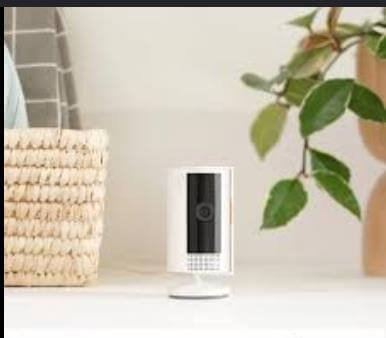
The Ring Indoor Cam (1080p HD, 2-Pack) is an excellent choice for homeowners who want reliable indoor monitoring without a complicated setup. Whether you’re keeping an eye on your pets, checking in on children, or improving home security, these compact cameras provide Full HD video, motion alerts, two-way talk, and live viewing directly from the Ring app. Learning how to use the Ring Indoor Cam (1080p HD, 2-Pack) properly ensures better camera placement, fewer false notifications, and smoother performance. This guide walks you through installation, Wi-Fi setup, camera configuration, troubleshooting, and maintenance for dependable monitoring every day.
Ready to monitor your home with confidence? Follow this step-by-step guide to set up your Ring Indoor Cam system and enjoy smarter indoor security from anywhere.
How do you use the Ring Indoor Cam (1080p HD, 2-Pack)?
Quick Answer
Using the Ring Indoor Cam is simple:
- Plug in both cameras.
- Download the Ring app.
- Create or sign in to your Ring account.
- Connect each camera to Wi-Fi.
- Position the cameras.
- Configure motion detection.
- Monitor live video and receive alerts.
Prerequisites
Before you begin, make sure you have:
- Ring Indoor Cam (2-Pack)
- Power adapters
- Smartphone or tablet
- Ring app
- 2.4 GHz Wi-Fi network
- Stable internet connection
- Ring account
- User manual
Step-by-Step Instructions
Follow these simple step-by-step instructions to set up, connect, and use your Ring Indoor Cam for reliable indoor security monitoring.
Step 1: Choose Camera Locations
Decide where each camera will be installed.
Popular locations include:
- Living room
- Entryway
- Nursery
- Home office
- Pet room
- Hallway
Place each camera near a power outlet.
Step 2: Connect the Cameras to Power
Plug both cameras into electrical outlets.
Wait until the LED indicators begin flashing.
This indicates the cameras are ready for setup.
Step 3: Install the Ring App
Download the Ring app.
Sign in or create a Ring account.
Enable:
- Notifications
- Camera permissions
- Location services (if required)
Step 4: Add Each Camera
Open the Ring app.
Tap Set Up a Device.
Scan the QR code on each camera.
Assign a unique name for each location, such as:
- Living Room
- Front Hall
- Nursery
- Office
Repeat the process for the second camera.
Step 5: Connect to Wi-Fi
Select your home’s Wi-Fi network.
Enter the password.
Wait for both cameras to complete setup.
Verify that each camera appears online in the Ring dashboard.
Step 6: Configure Security Settings
Customize each camera individually.
Configure:
- Motion Detection
- Motion Zones
- Motion Sensitivity
- Live View
- Two-Way Talk
- Privacy Zones
- Motion Scheduling
Adjust each camera based on its room.
Step 7: Test Both Cameras
Walk through each monitored area.
Verify that:
- Motion alerts arrive promptly.
- Live video loads correctly.
- Two-way audio functions properly.
- Night vision activates in low light.
Make adjustments if necessary.
What Tips Help Improve Camera Performance?
Tips
Following these tips improves monitoring accuracy.
Place Cameras at Eye Level
This provides a wider and more natural viewing angle.
Use Motion Zones
Reduce unnecessary notifications by monitoring only important areas.
Position Cameras Away from Windows
Bright sunlight may reduce image quality.
Keep the Camera Lens Clean
Regular cleaning improves video clarity.
Test Night Vision
Verify clear visibility before relying on overnight monitoring.
Name Cameras Clearly
Unique names make it easier to identify camera locations.
Maintain Strong Wi-Fi Coverage
Reliable internet ensures smooth live streaming and quick alerts.
What Common Mistakes Should You Avoid?
Common Mistakes
Placing Cameras Too Close Together
Overlapping coverage may create unnecessary duplicate alerts.
Ignoring Motion Zone Settings
Default settings may trigger excessive notifications.
Installing Cameras Near Heat Sources
Avoid placing cameras directly above heaters or vents.
Forgetting Firmware Updates
Regular updates improve security and performance.
Blocking the Camera View
Furniture or decorations may reduce visibility.
Weak Wi-Fi Signal
Poor connectivity may interrupt live video.
Sharing Account Passwords
Protect your Ring account with strong login credentials.
How Can You Troubleshoot Common Ring Indoor Cam Problems?
Troubleshooting
Problem: Camera Won’t Connect to Wi-Fi
Solution
- Verify the Wi-Fi password.
- Restart your router.
- Move the camera closer during setup.
Problem: Motion Alerts Are Delayed
Solution
- Improve Wi-Fi strength.
- Lower motion sensitivity if needed.
- Restart the camera.
Problem: Live View Doesn’t Load
Solution
- Check your internet connection.
- Close and reopen the Ring app.
- Restart the camera.
Problem: Poor Night Vision
Solution
- Clean the camera lens.
- Remove reflective objects nearby.
- Ensure infrared LEDs are unobstructed.
Problem: Two-Way Audio Doesn’t Work
Solution
- Enable microphone permissions.
- Increase device volume.
- Restart the Ring app.
Problem: Camera Appears Offline
Solution
- Confirm power is connected.
- Restart the router.
- Reconnect the camera through the Ring app.
What Are the Best Practices for Long-Term Performance?
Best Practices
Clean the Camera Lens Monthly
Use a microfiber cloth to remove dust.
Keep Firmware Updated
Install updates whenever prompted.
Test Motion Detection Regularly
Ensure notifications continue working properly.
Secure Your Ring Account
Enable two-factor authentication for additional security.
Review Camera Placement Periodically
Adjust positions if furniture or room layouts change.
Inspect Power Cables
Replace damaged cables immediately.
Review Recorded Events Regularly
Check activity history to verify that important events are being captured.
Frequently Asked Questions
Can I monitor both cameras at the same time?
Yes. The Ring app allows you to switch between multiple cameras easily.
Do I need a Ring Protect Plan?
A subscription is optional, but certain recording and storage features require a Ring Protect Plan.
Can I use the cameras as pet monitors?
Yes. Many users monitor pets using Live View and Two-Way Talk.
Do the cameras support night vision?
Yes. The Ring Indoor Cam includes automatic infrared night vision.
Can family members access the cameras?
Yes. Shared Users can be added through the Ring app.
Can I mount the cameras on a wall?
Yes. Wall-mounting hardware is included with most Ring Indoor Cam models.
Does the camera record continuously?
Recording behavior depends on your settings and available subscription features.
Conclusion
Setting up the Ring Indoor Cam (1080p HD, 2-Pack) is a simple process that delivers reliable indoor security and peace of mind. By positioning each camera correctly, configuring motion zones, maintaining a strong Wi-Fi connection, and keeping the firmware updated, you can maximize video quality and receive more accurate alerts. Routine maintenance, including cleaning the lenses and testing notifications, helps ensure consistent long-term performance. Whether you’re monitoring your home, pets, children, or office, these cameras provide convenient remote access and dependable protection, making them a practical addition to any modern smart home.
Protect More Rooms with Smarter Indoor Monitoring
Your Ring Indoor Cam (2-Pack) gives you the flexibility to watch over multiple spaces from one convenient app. Complete your setup, personalize your security settings, and enjoy the confidence of knowing your home is always within view—whether you’re across the room or across the world.