How to Use QuickBooks: A Beginner’s Step-by-Step Guide
Managing business finances manually can become confusing. Tracking invoices, expenses, payments, and tax records through spreadsheets takes time and increases the chances of mistakes. Small businesses need a simple way to organize financial information without spending hours on bookkeeping.
By TechScaleMedia Editorial · Updated July 2026 · 11 min read
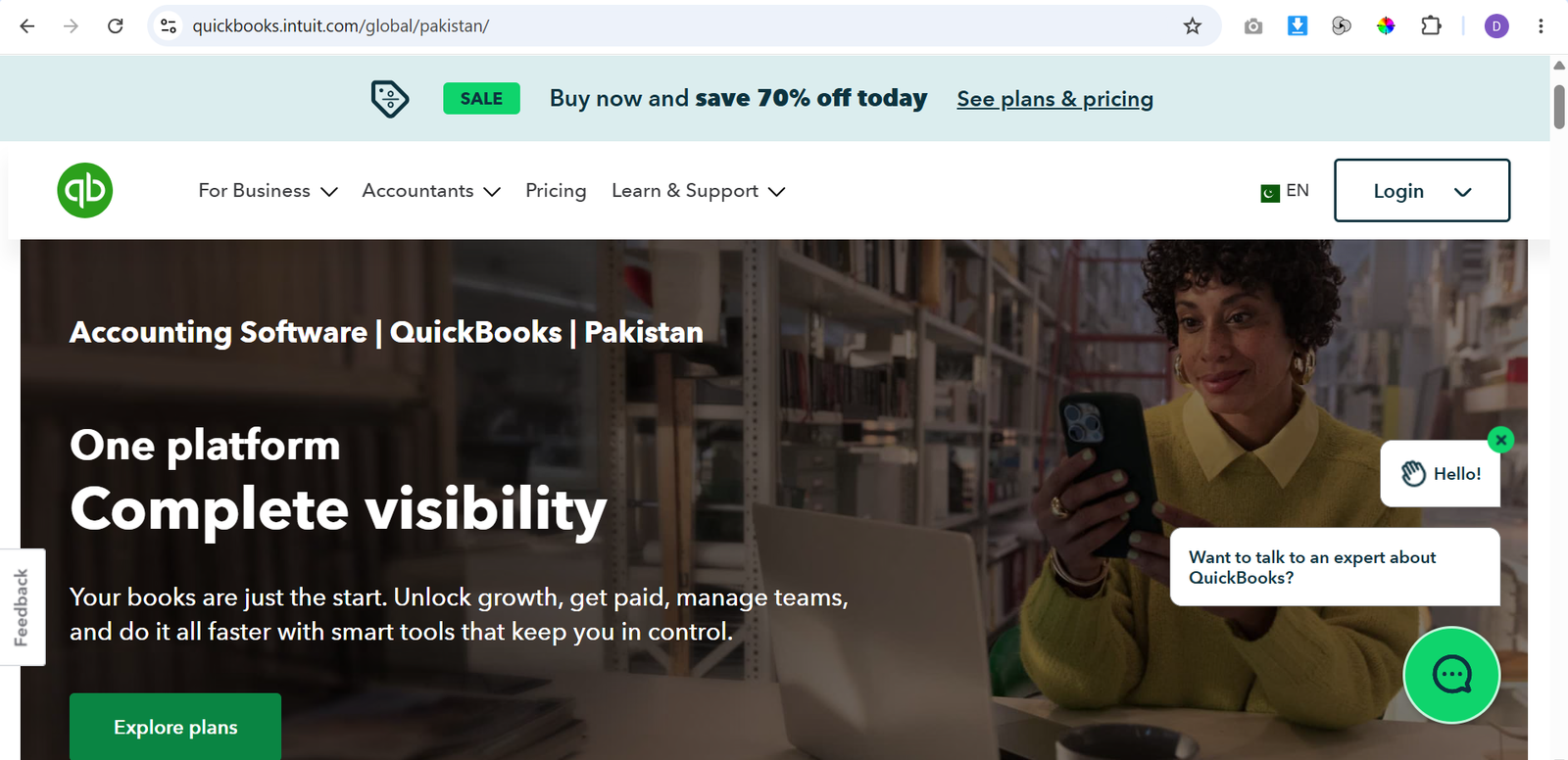
QuickBooks helps solve this problem by combining accounting, invoicing, expense tracking, payroll, and financial reporting in one platform. It allows business owners to monitor their finances, automate routine tasks, and keep accurate records.
In this guide, you’ll learn how to use QuickBooks step by step, from setting up your account to tracking expenses, creating invoices, and generating financial reports.
How Do You Use QuickBooks?
Quick Answer
To use QuickBooks:
- Create a QuickBooks account.
- Set up your company profile.
- Connect your bank accounts.
- Customize your accounts.
- Track income and expenses.
- Create invoices.
- Reconcile transactions.
- Generate financial reports.
Prerequisites
Before getting started, you’ll need:
- QuickBooks account
- Business information
- Bank account details
- Customer and vendor information
- Previous financial records (optional)
Create a Workflow Manually (Recommended for Beginners)
If you’re new to business accounting, setting up your first company in QuickBooks is the best way to understand how the platform actually works.
Step 1: Create Your QuickBooks Account
Choose between:
- QuickBooks Online for cloud-based access
- QuickBooks Desktop for traditional desktop accounting
Select a plan based on your business needs and complete the initial setup.
Step 2: Add Your Business Information
Enter basic details such as:
- Business name
- Industry
- Fiscal year
- Tax information
This helps QuickBooks organize your accounting setup correctly.
Step 3: Connect Your Bank Accounts
Link your business bank and credit card accounts.
QuickBooks will automatically import transactions, making it easier to track income and expenses without manual entry.
Step 4: Review Your Chart of Accounts
The Chart of Accounts organizes your financial activity into categories like:
- Income
- Expenses
- Assets
- Liabilities
Adjust categories according to your business needs.
Step 5: Track Expenses
Record business expenses by:
- Importing bank transactions
- Uploading receipts
- Adding manual expenses
Proper expense tracking helps you understand spending and prepare for taxes.
Step 6: Create Customer Invoices
Use QuickBooks to create professional invoices.
Add:
- Customer details
- Services or products
- Payment terms
- Due dates
You can send invoices online and track payment status.
Step 7: Reconcile Your Accounts
Compare QuickBooks records with your bank statements regularly.
This helps find:
- Missing transactions
- Duplicate entries
- Incorrect amounts
Step 8: Generate Financial Reports
Use QuickBooks reports to understand your business performance.
Important reports include:
- Profit and Loss
- Balance Sheet
- Cash Flow Report
These reports help you make better financial decisions.
Ready to simplify your business accounting without complex bookkeeping?
Start using QuickBooks to manage invoices, track expenses, monitor cash flow, handle payroll, and organize your finances—all from one easy-to-use platform.
How Can You Use QuickBooks More Efficiently?
Tips
- Use recurring invoices for regular customers.
- Update transactions regularly instead of waiting months.
- Use receipt scanning to save expense records quickly.
- Create clear categories for common expenses.
- Review your dashboard weekly.
How Can You Avoid Common QuickBooks Errors?
Common Mistakes
- Mixing personal and business expenses.
- Ignoring account reconciliation.
- Creating duplicate customer records.
- Forgetting to record cash payments.
- Giving too many people access to financial data.
How Can You Get the Most Value from QuickBooks?
Best Practices
- Maintain bookkeeping records consistently.
- Keep receipts and financial documents organized.
- Review reports before making business decisions.
- Limit account permissions based on user roles.
- Schedule regular financial reviews.
How Can You Troubleshoot QuickBooks Effectively?
Troubleshooting
Bank transactions are not syncing
Reconnect your bank account and check authorization settings.
Reports show incorrect numbers
Review transaction categories and check for duplicate entries.
Invoice payments are missing
Make sure payments are linked to the correct invoice.
Unable to log in
Reset your password or check your account access settings.
Frequently Asked Questions
Is QuickBooks good for small businesses?
Yes. QuickBooks is designed for small and medium-sized businesses that need simple financial management.
Can QuickBooks create invoices?
Yes. You can create, send, and track customer invoices directly inside QuickBooks.
Does QuickBooks track expenses?
Yes. QuickBooks can import transactions, categorize expenses, and store receipt information.
Can QuickBooks help with taxes?
Yes. It organizes financial records and creates reports that help during tax preparation.
Conclusion
QuickBooks makes business accounting easier by combining bookkeeping, invoicing, expense tracking, and reporting in one platform. By setting up your account correctly and maintaining regular financial records, you can save time and better understand your business performance.
Build a stronger foundation for business accounting and financial management with QuickBooks.
Start using QuickBooks today to simplify your bookkeeping, organize business finances, and make smarter decisions with accurate financial data.