How to Use Pabbly Connect AI: Complete Beginner’s Guide to No-Code Workflow Automation
Connect 2,000+ apps, move data between them automatically, and build your first workflow in minutes — no code required.
By TechScaleMedia Editorial · Updated July 2026 · 11 min read
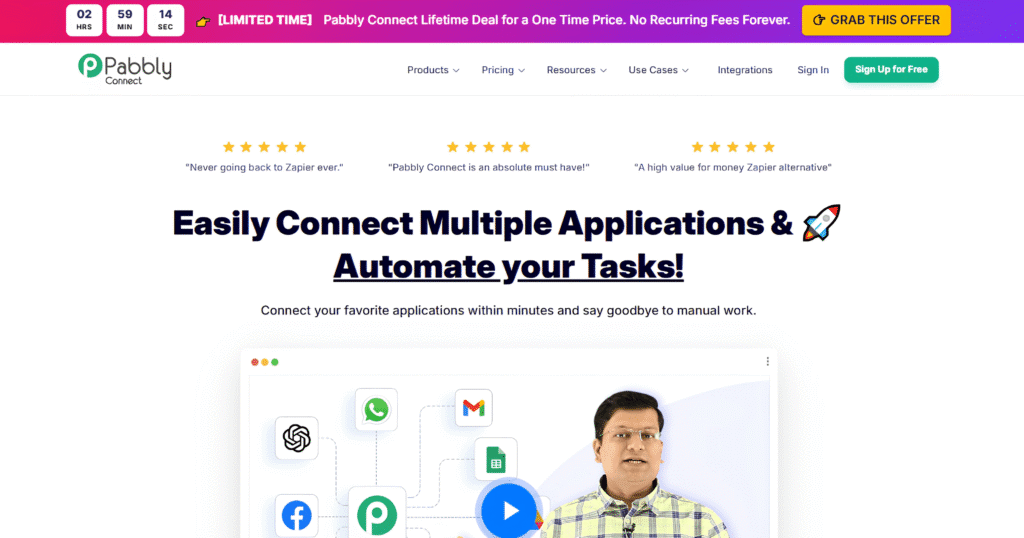
Managing repetitive tasks across multiple apps wastes time, reduces productivity, and increases the chance of manual errors. Whether you’re capturing leads, updating CRM records, sending emails, syncing customer data, or managing eCommerce orders, handling these processes by hand slows your business down. Pabbly Connect AI solves this with a no-code workflow automation platform that connects 2,000+ applications and transfers data between them automatically — without any programming skills.
What makes Pabbly Connect stand out is its unlimited automation model: unlimited workflows, unlimited connected apps, and no task limits to worry about. It also features Agentic AI, which generates complete workflows from a simple text prompt and integrates with leading models like OpenAI GPT-4, Google Gemini, Anthropic Claude, and Perplexity AI. From lead management and email automation to CRM updates, AI content generation, and data sync, it helps businesses cut operational costs, minimise human error, and improve efficiency.
If you want an affordable alternative to traditional automation tools, this beginner-friendly guide shows you exactly how to set up your account, create your first workflow, connect your favourite apps, use AI-powered automations, and follow the best practices that keep everything running.
A Quick Overview
Pabbly Connect AI is a no-code automation platform that connects your favourite apps and automates repetitive tasks. Every workflow follows the same four-part process:
- Trigger — the event that starts the workflow, such as a new form submission or order.
- Action — the task performed automatically, like sending an email or creating a CRM contact.
- Data Mapping — matches data from one app to the correct fields in another.
- Automation — once activated, the workflow runs every time the trigger occurs.
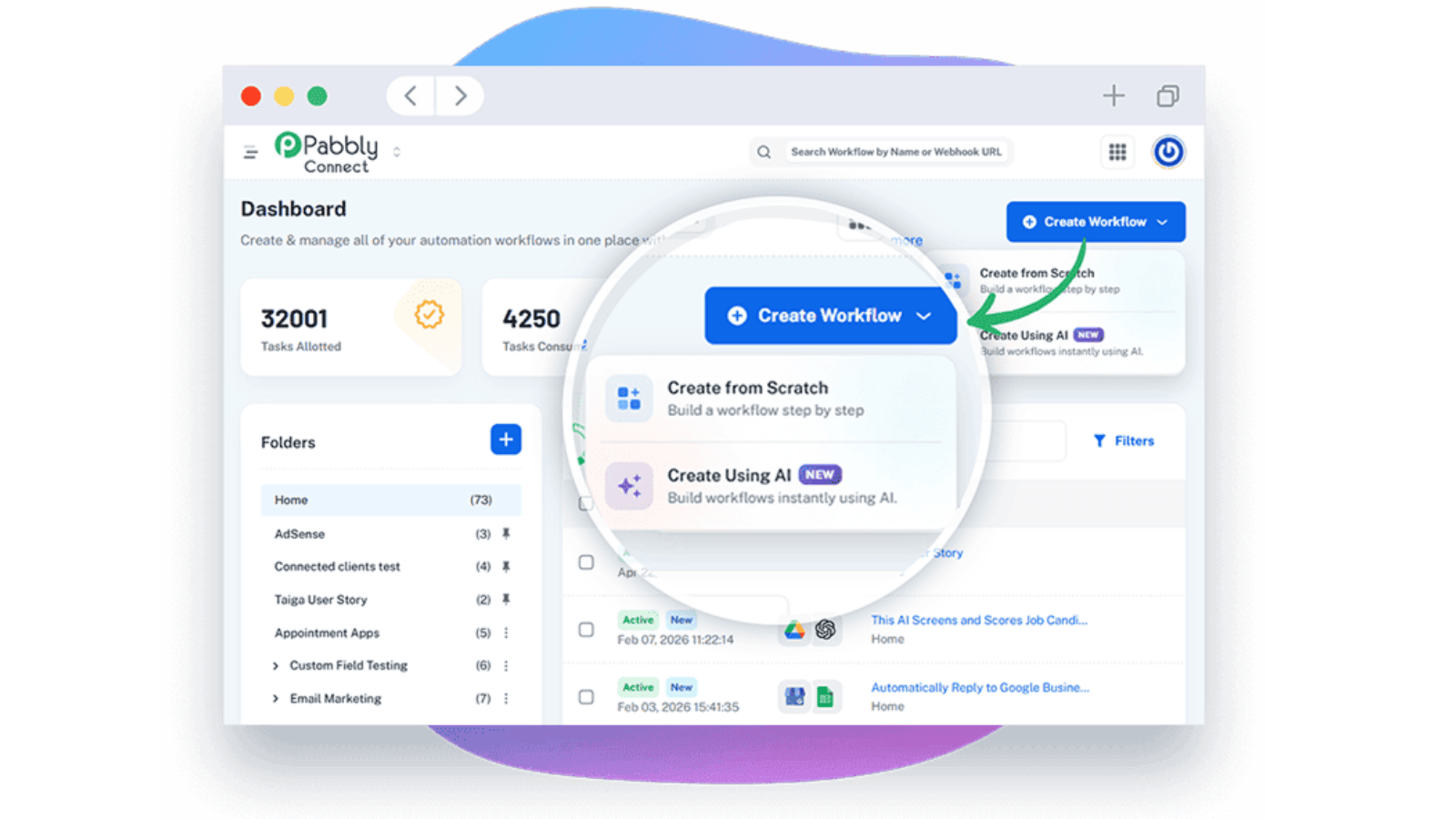
For faster setup, Agentic AI can generate a complete workflow from a single text prompt — which makes automation approachable even if it’s your first time.
What You’ll Need Before Using Pabbly Connect
Before creating your first automation, make sure you have the basics in place:
- A Pabbly Connect account
- A stable internet connection
- The apps you want to automate
- API credentials or login permissions, if required
Popular integrations
Google Sheets, Gmail, Google Forms, Shopify, WooCommerce, WordPress, Slack, HubSpot, Salesforce, Airtable, OpenAI, Google Gemini, and Anthropic Claude.
Create a Workflow Manually (Recommended for Beginners)
If you’re new to automation, building your first workflow by hand is the best way to understand how Pabbly Connect actually works.
Step 1: Create a New Workflow
Log in to your Pabbly Connect dashboard and click Create Workflow. Give it a clear name that describes its purpose, such as Lead Capture Automation or Shopify Order Processing.
Step 2: Choose Your Trigger App
Select the application that will start your automation — this is the Trigger. Common choices include Google Forms, Shopify, Facebook Lead Ads, WooCommerce, and Gmail. Whenever the selected event occurs, Pabbly starts the workflow.
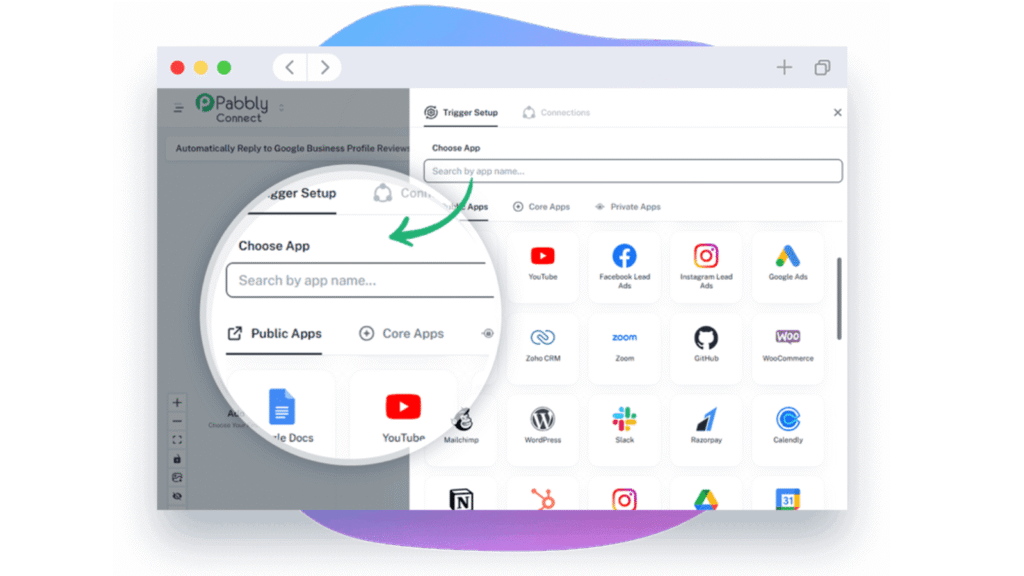
Step 3: Add Your Action App
Next, choose the application where you want the data to go. Popular actions include:
- Send an email
- Create a CRM contact
- Add a row to Google Sheets
- Send a Slack notification
- Update Airtable
You can also add multiple actions to build more advanced workflows.
Step 4: Map Your Data
Match information from the trigger app with the appropriate fields in the destination app. For example:
- Customer Name → CRM Name
- Email Address → Gmail Recipient
- Phone Number → Contact Record
Accurate field mapping ensures your automation transfers the correct information.
Step 5: Test the Workflow
Run a test to confirm that every trigger, action, and mapped field is working correctly. If any errors appear, update the configuration before continuing.
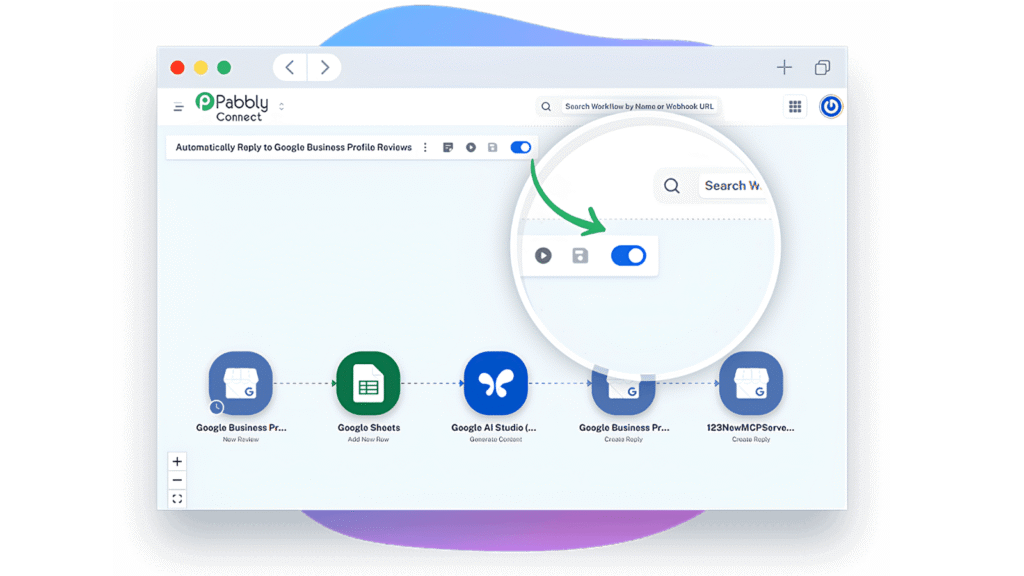
Step 6: Activate Your Workflow
Once everything works as expected, switch the workflow ON. Pabbly Connect will monitor your trigger app and run the automation automatically whenever the trigger event occurs.
Ready to automate your daily tasks and save time?
Build your first workflow in minutes and let Pabbly handle the repetitive work.
Pro Tips to Get the Most Out of Pabbly Connect
These expert tips will help you build smarter, faster, and more reliable automations:
- Start with pre-built workflow templates to save setup time.
- Write detailed AI prompts so Agentic AI generates more accurate workflows.
- Use Filters to ensure workflows run only when specific conditions are met.
- Add Routers to send data to multiple apps from a single trigger.
- Store reusable connections to avoid reconnecting apps repeatedly.
- Use Delays to schedule follow-up emails or notifications.
- Organise workflows into folders for easier management.
- Enable workflow history to monitor every run and quickly identify issues.
- Secure sensitive data with encrypted connections and trusted integrations.
- Explore Pabbly’s template library for proven automation ideas you can customise.
These features can save hours of manual work and help you build more efficient automation systems.
Common Pabbly Connect Mistakes to Avoid
Pabbly Connect is beginner-friendly, but small configuration mistakes can prevent your automations from working correctly. Avoid these common errors.
- Choosing the wrong trigger event. Selecting New Contact instead of New Order can make workflows run at the wrong time, or not at all.
- Mapping fields incorrectly. Incorrect mapping may send customer information to the wrong destination or leave important fields blank.
- Ignoring required app permissions. Without API access or authorisation, the workflow can’t read or write data.
- Creating one large workflow. Packing too many actions into a single workflow makes it harder to manage and troubleshoot.
- Skipping workflow testing. Activating a workflow without testing can result in incorrect data transfers or failed automations.
- Using generic AI prompts. Vague prompts often produce incomplete workflows. Be specific about the apps, triggers, actions, and expected outcome.
Best Practices for Building Reliable Automations
Once your workflows are running, these long-term practices keep your automations organised, scalable, and easy to maintain.
- Organise workflows into folders based on departments or business functions.
- Use clear workflow names so they are easy to identify later.
- Review automation history regularly to detect failed tasks.
- Update workflows whenever connected apps release major changes.
- Remove outdated or unused automations to keep your workspace organised.
- Keep API credentials secure and reconnect expired integrations promptly.
- Document complex workflows so your team can understand and manage them.
- Review AI-generated workflows before publishing to ensure every step matches your process.
- Regularly optimise workflows by removing unnecessary actions.
- Monitor workflow performance as your business grows and expand successful automations.
Troubleshooting Common Pabbly Connect Issues
If your automation isn’t working as expected, these quick fixes can help.
Workflow isn’t triggering
- The workflow is switched ON.
- The correct trigger event is selected.
- Your connected app is properly authorised.
- A new trigger event has actually occurred.
Data isn’t syncing between apps
- Required fields are correctly mapped.
- The destination app supports the selected action.
- API connections are still active.
- The data format matches the destination app’s requirements.
Authentication or connection failed
Reconnect the affected application and confirm that your login credentials or API keys are still valid.
Agentic AI generated the wrong workflow
Rewrite your prompt with more detail. Instead of “Send emails automatically,” use:
“When a new lead is added from Facebook Lead Ads, create a HubSpot contact, send a Gmail welcome email, and notify my sales team in Slack.”
Specific prompts produce much more accurate automations.
Workflow stops unexpectedly
Review the Task History to identify failed steps, API errors, or permission issues. Correct the problem and run another test before reactivating the workflow.
Frequently Asked Questions
What apps integrate with Pabbly Connect?
Pabbly Connect integrates with 2,000+ applications, including Google Sheets, Gmail, Google Forms, Shopify, WooCommerce, WordPress, Slack, HubSpot, Salesforce, Zoom, Notion, Airtable, OpenAI, and Google Gemini. It also ships built-in utilities such as Filter, Router, Loop, Iterator, Delay, and API steps.
Is Pabbly better than Zapier?
It depends on your needs. Pabbly Connect is often preferred for its unlimited workflows and unlimited task execution on paid plans, which makes it more cost-effective for high automation volumes. Zapier offers a larger integration library and suits teams that need advanced enterprise-level automation.
What are AI automation tools?
AI automation tools use artificial intelligence to handle repetitive tasks and business workflows — content generation, data extraction, customer support, email automation, CRM updates, and app integrations — with minimal human intervention.
Is Pabbly an Indian company?
Yes. Pabbly is an Indian software company that develops cloud-based business tools, including Pabbly Connect, Email Marketing, Subscription Billing, and Form Builder.
How does Pabbly compare to competitors?
Pabbly Connect stands out for unlimited automation workflows, unlimited app connections, built-in AI features, and affordable pricing. Compared with many competitors it offers better value for anyone automating frequently without worrying about task limits.
How much does Pabbly Connect cost?
Pabbly Connect offers both free and paid plans. Pricing depends on the plan and features you need, with paid plans providing unlimited workflows, premium integrations, and advanced automation capabilities.
Is there a monthly payment option?
Yes. Pabbly Connect offers monthly and annual subscription plans, so you can pick the billing option that fits your budget and automation requirements.
Is Pabbly Connect good?
Yes. It’s a reliable no-code automation platform for individuals and businesses automating repetitive tasks. Support for 2,000+ integrations, AI-powered workflow creation, unlimited automations, and competitive pricing make it a strong choice for improving productivity.
Conclusion
Pabbly Connect makes workflow automation simple by connecting your favourite applications and removing repetitive manual tasks. Whether you build workflows by hand or let Agentic AI generate them from text prompts, the platform improves productivity, reduces human error, and streamlines operations. With 2,000+ app integrations, unlimited workflows, and powerful no-code features, it’s an excellent option for businesses that want to save time and scale efficiently.
Automate without writing a single line of code
Start using Pabbly Connect today, create your first workflow in minutes, and see how AI-powered automation simplifies your daily operations.